
How High Should My Monitor Be with Office Chair?
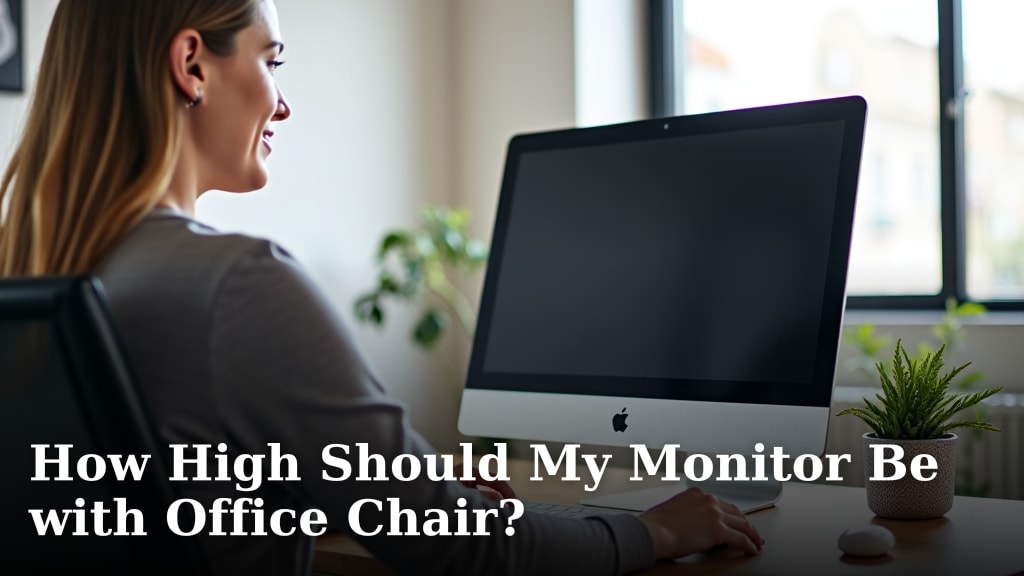
Your monitor should ideally be positioned so the top of the screen is at or slightly below your eye level. This helps maintain a neutral neck posture and prevents strain. When sitting in your office chair, aim for your eyes to look slightly downward at the screen. This simple adjustment is key for comfort and productivity.
Getting your monitor height right with your office chair is more than just comfort; it’s about ergonomics and long-term health. Many people overlook this, leading to neck pain, headaches, and fatigue. Proper monitor placement can significantly reduce these issues and improve your overall workday well-being.
- Top of monitor at or below eye level.
- Avoid tilting your head up or down.
- Use your office chair’s height adjustment.
- Consider monitor stands or risers.
- Small adjustments make a big difference.
Let’s break down exactly how to find that perfect monitor height for your setup. We’ll cover the simple steps you can take right now.
You’ve got your fancy new office chair, all the bells and whistles. But is your monitor sitting there like a lopsided hat? Let’s talk about getting that screen height just right, so you and your chair can be best buds for your back.
Setting Up Your Monitor for Peak Ergonomics
Your monitor’s position is more than just a preference; it’s a posture prescription. Getting it right means your neck and eyes can relax. It’s like finding the perfect pillow for your head. You want it to support, not strain.
The Golden Rule: Eye Level Alignment
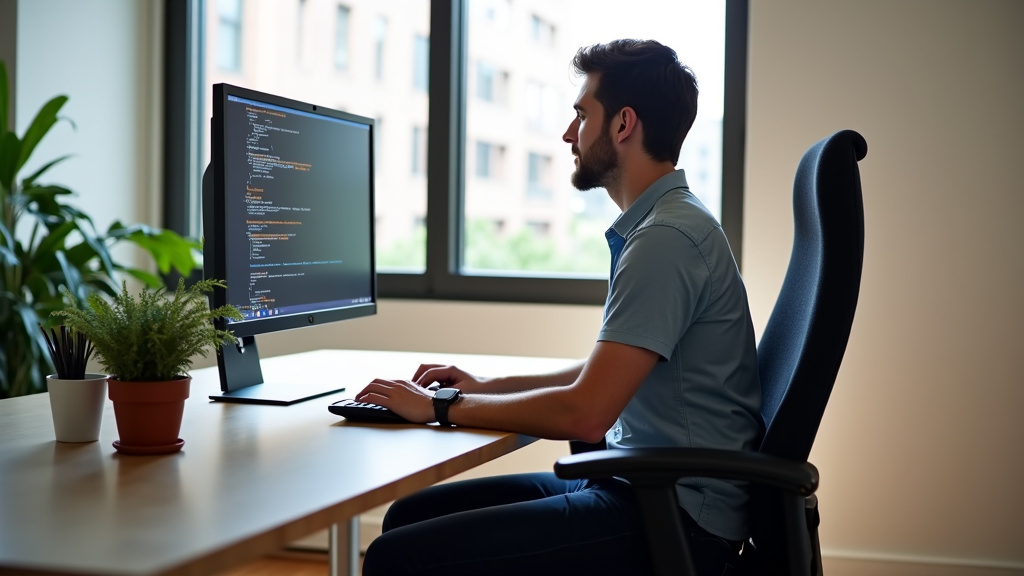
The most important rule is simple. Your monitor should be positioned so the top edge of the screen is at or just below your natural eye level when you’re sitting upright. Think about it: when you’re looking forward, your eyes naturally fall slightly downward. This is the sweet spot.
Why Top of the Screen Matters
Focusing on the top of the screen ensures you’re looking at the middle to upper part of your display. This prevents you from having to crane your neck up or tuck your chin down. Many ergonomic guidelines suggest this for optimal viewing (Occupational Safety and Health Administration).
Testing Your Eye Level
Here’s a quick check. Sit back in your chair. Relax your shoulders. Look straight ahead. Is the top of your monitor in line with that gaze? If you find yourself tilting your head up, the monitor is too low. If you feel like you’re looking down too much, it’s too high.
The Role of Your Office Chair Height
Your office chair is your foundation. Adjusting its height is the first step to a good monitor setup. You want your feet flat on the floor. Your thighs should be parallel to the floor, or even slightly angled down. This provides a stable base for everything else.
Feet on the Floor (or Footrest)
If your feet don’t comfortably reach the floor, don’t ignore it! You might need a footrest. Letting your feet dangle can put pressure on your legs and affect your posture. Keeping them supported helps maintain a neutral spine. Research from the CDC highlights the importance of proper seating posture.
Thighs and Knees
The angle of your thighs is also key. They should be roughly horizontal. Your knees should be at about a 90-degree angle. If your chair is too high, your knees might be higher than your hips. This can cause discomfort and hinder blood flow.
Connecting Chair Height to Monitor Height
Once your chair is set correctly, you can then adjust your monitor. The chair height dictates where your eyes naturally fall. Then, you position the monitor relative to that eye level. It’s a domino effect for good posture.
Tools and Tricks for the Perfect Monitor Height
Not all desks and monitors are created equal. Some days, you might need a little help to reach that ergonomic sweet spot. Thankfully, there are simple solutions.
Monitor Stands and Risers: Your Best Friends
These are game-changers for many people. A monitor stand or riser lifts your screen to the desired height. They come in various styles, from simple blocks to adjustable arms.
Adjustable Monitor Arms
These are fantastic for flexibility. You can easily move your monitor up, down, forward, and back. Many also allow you to tilt and swivel. This is great if you share a desk or change positions often. They free up desk space too!
Simple Monitor Stands
For a more budget-friendly option, consider a basic monitor stand. These are often made of wood, metal, or plastic. They simply elevate your monitor. Make sure to choose one sturdy enough for your monitor’s weight.
DIY Solutions (with Caution!)
In a pinch, people have used stacks of books or sturdy boxes. While this can work temporarily, it’s not ideal. It might not be stable or look very professional. For long-term comfort, invest in a proper stand.
Using Your Monitor’s Built-in Adjustments
Many monitors come with stands that offer some height adjustment. Before buying a riser, check if your monitor’s stand can do the job. Look for a lever or knob that allows you to slide the screen up or down. This is often the easiest first step.
Checking the Monitor Manual
If you’re unsure, consult your monitor’s manual. It will tell you what adjustments are possible with its original stand. Sometimes, the adjustment range is surprisingly good!
The Laptop Dilemma
Laptops present a unique challenge. Their screens are often too low, and typing on them for extended periods can strain your wrists and neck. For laptop users, an external keyboard and mouse are a must. You’ll also want a laptop stand or a separate monitor.
External Keyboard and Mouse
These allow you to position your laptop screen at the correct eye level. You can then type with your elbows at about a 90-degree angle, wrists straight. This setup mimics a desktop workstation.
Laptop Stands
A laptop stand elevates your device. This makes the screen height adjustable. It’s a good intermediate step. Combine it with an external keyboard and mouse for a truly ergonomic setup.
Fine-Tuning for Comfort and Productivity
Once you’ve got the basic height sorted, there are a few more things to consider. Small tweaks can make a big difference in your daily comfort.
Viewing Distance: Not Too Close, Not Too Far
Your monitor shouldn’t be right in your face, nor should it be so far away you squint. A good rule of thumb is about an arm’s length away. This distance helps reduce eye strain. It also helps you see the entire screen without excessive head movement.
Arm’s Length Test
Extend your arm. Your fingertips should just about touch the screen. If you have to lean forward to touch it, it’s too close. If you have to reach significantly, it might be too far.
Screen Tilt: Finding the Perfect Angle
After height and distance, consider the tilt. You want to tilt the screen slightly back. This helps you see the display clearly. It also supports a natural head and neck position. Avoid tilting it too far back or forward.
Reducing Glare
Tilting can also help reduce glare from windows or overhead lights. Position your monitor so it doesn’t reflect direct light into your eyes. This is important for eye comfort.
Common Mistakes to Avoid
Let’s recap some pitfalls to steer clear of.
- Monitor too low: Leads to hunching and neck strain.
- Monitor too high: Causes upward neck tilt and discomfort.
- Ignoring feet support: Can lead to poor posture from the ground up.
- Not using a stand when needed: Forces compromises on height.
- Forgetting about laptops: They require special attention for ergonomics.
A Quick Checklist for Your Setup
Ready to check your setup? Use this simple checklist:
- Is the top of your monitor at or below eye level?
- Are your feet flat on the floor or a footrest?
- Is your chair height allowing for a 90-degree knee bend?
- Is your monitor roughly an arm’s length away?
- Is the screen tilted slightly back for comfortable viewing?
- Have you considered a stand or riser if needed?
Getting these details right might seem like a lot. But once you feel the difference, you’ll wonder how you ever worked any other way. Your body will thank you for it!
Conclusion
You’ve now learned the secrets to setting your monitor at the perfect height with your office chair. Remember, the top of your screen should align with your eye level to promote a neutral neck posture. Your chair’s height is the crucial first step, ensuring your feet are supported and your posture is sound. Investing in a monitor stand or arm can make achieving this ideal position much easier.
Make these ergonomic adjustments a priority. Your body will thank you with reduced strain and increased comfort throughout your workday. Take a moment right now to check your setup against the simple checklist provided. Your future self will feel much better!
Frequently Asked Questions
What if my desk is too high or too low for my chair?
If your desk height doesn’t allow for proper chair adjustment, focus on getting your chair as close as possible to a 90-degree knee bend with feet flat. Then, use monitor stands or risers to bring your screen to the correct eye level. You may need to adjust your keyboard and mouse placement separately to maintain good arm posture.
Can I use a laptop without a stand?
For short periods, it might be okay. However, for extended laptop use, you’ll likely need a laptop stand, an external keyboard, and a mouse. This setup allows you to position the laptop screen at your eye level, preventing neck strain. Without these, you’ll probably find yourself hunching over.
How do I know if my monitor is too close or too far away?
The arm’s length test is a great guideline. Extend your arm while sitting normally; your fingertips should just reach the screen. If you need to lean forward to touch it, it’s too close. If you have to reach significantly, it’s likely too far away. Finding this balance reduces eye strain.
My monitor stand doesn’t go high enough, what are my options?
If your monitor’s built-in stand can’t reach your ideal eye level, a monitor riser or stand is your best bet. You can also consider an adjustable monitor arm, which offers a wide range of vertical and horizontal movement. Even a sturdy stack of books can work in a pinch, but a proper stand is more stable.
How often should I adjust my monitor height?
Ideally, you should set your monitor height once and it should stay correct. However, if you use a standing desk or change your sitting position frequently, you might need to make minor adjustments. Pay attention to how your body feels; discomfort is a signal that something needs tweaking.
