Ergonomic Keyboards and Mice: The Complete Buying Guide
The best ergonomic keyboard and mouse match your hand position, typing style and desk space. Choose the keyboard layout first, then select a mouse shape that keeps your wrist and forearm comfortable.
On this page (11 sections)
- How do ergonomic keyboards and mice improve desk comfort?
- Which ergonomic keyboard layout should you choose?
- Which ergonomic mouse shape fits your hand?
- Should you choose a wireless ergonomic keyboard and mouse?
- How should you set up an ergonomic keyboard and mouse?
- Do mouse pads and wrist rests matter?
- Which ergonomic keyboard and mouse combination suits you?
- How should you compare ergonomic keyboard and mouse features?
- How should you adjust to a new ergonomic keyboard or mouse?
- How should you clean and care for an ergonomic keyboard and mouse?
- What is the final ergonomic keyboard and mouse buying rule?
The best ergonomic keyboard and mouse setup matches your hand position, typing style and desk space. Start with the keyboard layout, then choose a mouse shape that lets your wrist and forearm rest in a comfortable position.
A keyboard can change how far your hands reach and how much your shoulders turn inward. A mouse can change whether your forearm rests flat, angled or more upright during pointer work.
This guide explains the main ergonomic keyboard and mouse designs, the trade-offs between them and the features that matter for a home office. We compared the product specifications and features for the 4 options included here.
How do ergonomic keyboards and mice improve desk comfort?
Ergonomic keyboards and mice are designed to change hand, wrist or forearm position during computer work. They may help you maintain a more relaxed posture, but comfort depends on fit, setup and how your body responds.
A useful setup keeps the keyboard close enough that your elbows stay near your sides. The mouse should sit close to the keyboard so you do not repeatedly reach outward.
For more ways to arrange your work area, see desk organizers and accessories.
If desk space is limited, compare clamp-on keyboard trays that can hold both input devices.
Your keyboard and mouse also work as a pair. If you need to reposition them, see how to add a keyboard tray to a desk.
A compact keyboard can bring the mouse closer to your body, while a large keyboard may leave less room for a comfortable mouse position.
If your chair or desk height forces your arms upward, changing the keyboard alone may not solve the problem. Compare our guide to the Best Computer Chair for Office Work when your desk posture needs a wider review.
For a broader seat and posture reference, see the Best Ergonomic Office Chair guide. Your input devices should support the position created by your chair and desk rather than fight it.
Which ergonomic keyboard layout should you choose?
The right ergonomic keyboard layout depends on how much you value familiar key placement, reduced reach or separated hand positions. Full-size, compact, wave-shaped and split keyboards each solve a different desk problem.
Full-size keyboards
A full-size keyboard usually keeps the familiar number row, navigation keys and number pad in one broad layout. It can suit office work that uses a number pad often, but its width may push the mouse farther away.
The Logitech MK345 uses a 104-key QWERTY layout with an integrated palm rest and media keys. Its full-size design suits people who want familiar spacing and easy access to a number pad.
The MK345 connects through a single USB-A Nano Receiver and uses 2.4 GHz wireless connectivity. Logitech lists Windows, macOS and ChromeOS support for the combo.
Choose it if your priority is familiar typing, a number pad and a right-handed mouse. Its width may be less suitable if you want the mouse very close to your body.
Compact ergonomic keyboards
A compact ergonomic keyboard removes or reduces some keys to shorten the distance between your hands and the mouse. This can help you keep the mouse closer without moving the keyboard far to one side.
The Logitech Wave Keys MK670 has 99 keys and a compact wave-shaped design. Its cushioned memory foam palm rest supports the palms, while the mouse is intended for medium- to large-sized hands.
The keyboard can connect through Bluetooth or a Logi Bolt USB receiver. Easy-Switch lets the keyboard move between a PC, tablet and phone, with Windows, macOS, iPadOS and ChromeOS listed among its operating systems.
Choose it if you want a shorter keyboard with a familiar QWERTY layout and a mouse that can suit either hand. Check the mouse size carefully if your hands are small.
The Best Compact Ergonomic Keyboards guide is useful when desk width and mouse position matter more than a number pad.
Wave-shaped keyboards
A wave-shaped keyboard changes the key rows from a straight line to a curved or flowing pattern. The goal is to place the keys under a more natural hand position while keeping a familiar typing order.
The Logitech Wave Keys and Lift combo uses a compact wave-shaped keyboard with a cushioned memory foam palm rest. Its Lift mouse has a 57-degree vertical shape, a thumb rest and a softly textured grip for small to medium hands.
The keyboard and mouse connect through Bluetooth Low Energy or a Logi Bolt USB receiver. The combo works with Windows, macOS, ChromeOS, Linux and iPadOS versions listed in the product data.
Choose it if you want a wave keyboard and a vertical mouse in one matched set. The vertical mouse shape may take more adjustment than a standard contoured mouse.
Read the Logitech Wave Keys and Lift Combo Review for a closer look at this keyboard and mouse pairing. The Logitech Wave Keys MK670 Review covers the other Wave Keys combo in this guide.
Split ergonomic keyboards
A split keyboard separates the left and right key groups so you can position each hand independently. Some designs are fixed in a split shape, while others let you move the halves farther apart.
Split keyboards can suit people who want more control over shoulder width and hand spacing. They also require a larger adjustment period because the space between keys and the location of common buttons may feel different.
See the Best Ergonomic Split Keyboards guide if you want a keyboard designed around separated hand positions. For keyboard and mouse sets built around that idea, compare the Best Split Keyboard and Mouse Combos guide.
Large-print and familiar layouts
Large-print keyboards use bigger or higher-contrast lettering on the keys. They can help if reading small key labels is difficult, while still keeping a familiar layout.
The Best Large Print Keyboards guide focuses on visibility rather than changing the hand position. That can be the better starting point if your main concern is seeing the keys clearly.
Which ergonomic mouse shape fits your hand?
The best ergonomic mouse shape depends on your grip, hand size, preferred wrist angle and need for precise pointer control. A standard contoured mouse is familiar, while a vertical mouse changes forearm position and a trackball reduces the need to move the mouse body.
Standard contoured mice
A contoured mouse follows the curve of the palm and usually feels familiar after a short setup period. Right-handed models can provide a more shaped grip, while ambidextrous designs give you more flexibility.
The Logitech MK345 includes a compact right-handed optical mouse with smooth tracking and scrolling. It suits a user who wants a familiar mouse shape with a full-size keyboard.
The ULSOU Wireless Keyboard and Mouse Combo includes a contoured right-handed optical mouse with forward and back functions. Its mouse has adjustable DPI levels and uses the same 2.4 GHz USB receiver as the keyboard.
ULSOU lists Windows and Mac compatibility, with a switch between the two system layouts through keyboard shortcuts. The keyboard and mouse each require 1 AA battery, and the batteries are not included.
Choose it if you want a wave keyboard, adjustable DPI and a right-handed mouse at a simple plug-and-play setup. Confirm that the receiver location inside the mouse is easy for you to access before setup.
Vertical mice
A vertical mouse places your hand in a more upright position than a flat mouse. This can suit people who prefer a more neutral-feeling forearm angle, but the shape can feel unfamiliar at first.
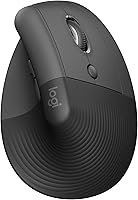
The Logitech Lift mouse in the Wave Keys and Lift combo has a 57-degree vertical design. It is made for small to medium hands and includes a thumb rest, softly textured grip and SmartWheel.
The Best Ergonomic Vertical Mice guide compares vertical designs separately. Choose this style when your hand feels more comfortable resting upright than flat on the desk.
The Logitech Lift is right-handed. If you need to switch hands during the day, an ambidextrous mouse such as the one paired with the MK670 may be easier to share.
Trackball mice
A trackball mouse lets you control the pointer with a ball while the mouse body stays in place. This can reduce the amount of desk movement needed, which may help when your desk is narrow or crowded.
Trackballs vary in ball location and hand position. Check whether the design is controlled by your thumb or fingers, then match that control style to the movements you perform most often.
See the Best Ergonomic Trackball Mice guide if you want pointer control with less mouse travel. A trackball is a different skill from a standard mouse, so allow time to learn it.
Left-handed and ambidextrous mice
Left-handed users should check hand orientation before choosing a mouse. A right-handed contour can feel awkward in the other hand, while an ambidextrous shape may offer a more flexible fit.
The Logitech Wave Keys MK670 includes an ambidextrous Signature M550 L mouse. That makes it a useful option for shared desks or users who want more choice about which hand controls the mouse.
See the Best Left Handed Mice guide for models designed around left-hand use. When a mouse must be shared, check both the shape and the button layout.
Should you choose a wireless ergonomic keyboard and mouse?
Wireless ergonomic keyboards and mice reduce cable clutter and make it easier to change desk positions. The trade-offs are battery management, receiver placement and the connection method supported by your computer.
USB receiver connections
A shared USB receiver can make setup simple because one receiver connects both devices. The Logitech MK345 uses one included USB-A Nano Receiver, while the ULSOU combo uses one 2.4 GHz USB receiver for the keyboard and mouse.
Check the ports on your computer before choosing a receiver-based combo. If your laptop has limited ports or uses a different connector, you may need a suitable adapter.
ULSOU lists a range of up to 33 ft, or 10 m, and an automatic sleep function after periods of inactivity. The keyboard sleeps after 30 seconds and the mouse after 15 minutes according to the product details.
Bluetooth connections
Bluetooth can reduce the number of physical receiver ports you use. The Logitech Wave Keys MK670 supports Bluetooth and Logi Bolt, while the Wave Keys and Lift combo supports Bluetooth Low Energy and Logi Bolt.
Bluetooth is useful when you switch between supported devices. Check the operating system list and the switching method before assuming every keyboard feature works identically across a PC, tablet and phone.
For more wireless options, see the Best Wireless Ergonomic Keyboards guide. The Best Wireless Ergonomic Mice guide focuses on mouse connection choices.
Battery planning
Wireless devices need a battery plan. The MK345 uses 2 AA batteries, included, and Logitech states up to 3 years for the keyboard and 18 months for the mouse.
The MK670 combo uses an included lithium polymer battery. Logitech states up to 3 years for the keyboard and up to 2 years for the mouse.
The ULSOU keyboard and mouse each use 1 AA battery, and those batteries are not included. The Wave Keys and Lift combo includes 2 AAA batteries for the keyboard and 1 AA battery for the mouse.
These figures describe expected battery life, not a guarantee for every work pattern. Keep the battery compartment and receiver location easy to reach so maintenance does not require moving your whole desk.
How should you set up an ergonomic keyboard and mouse?
Place the keyboard close to your body, keep your shoulders relaxed and position the mouse near the keyboard. Your forearms should not need to reach forward or sideways for every task.
Start by sitting at your normal work height. Let your arms rest naturally, then place the keyboard where your fingers meet the keys without pushing your shoulders forward.
Keep the keyboard flat or at the lowest comfortable angle if raising the rear makes your wrists bend upward. Use a palm rest for support during pauses, not as a hard edge that presses into the wrists while you type.
Place the mouse beside the keyboard rather than far away near the desk edge. If a full-size keyboard pushes it too far outward, a compact or tenkeyless option may give you more room.
The Best Keyboard Wrist Rests guide can help if the keyboard edge feels uncomfortable. A wrist rest should support the palm area without forcing your wrists into a fixed position.
For under-desk mounting, compare the Best Adjustable Under-Desk Keyboard Trays guide. A tray can change keyboard height, but it must leave enough room for your knees and mouse.
The Best Ergonomic Keyboard Trays guide covers other tray designs. Measure the desk underside and check the available depth before choosing one.
Do mouse pads and wrist rests matter?
Mouse pads and wrist rests matter most when they change pressure, friction or positioning at your desk. They cannot correct a mouse that is too large or a keyboard that sits too high.
A mouse pad with wrist support may give your hand a consistent resting area. Check that the support does not hold your wrist above the mouse buttons or restrict movement.
See the Best Mouse Pads with Wrist Support guide if your mouse area feels hard or uneven. Choose a pad large enough for the pointer movements you use.
A separate mouse wrist rest can help when you pause often and want support beside the mouse. Compare the Best Mouse Wrist Rests guide, and keep the rest aligned with the mouse rather than behind it.
Which ergonomic keyboard and mouse combination suits you?
Choose the Logitech MK345 if you want a familiar full-size keyboard, a 104-key QWERTY layout, an integrated palm rest and a compact right-handed mouse.
Choose the Logitech Wave Keys MK670 if you want a 99-key compact wave keyboard, memory foam palm support and an ambidextrous mouse for medium- to large-sized hands.
Choose the ULSOU combo if you want a full-size wave keyboard with a wrist rest, a right-handed mouse with 3-level DPI adjustment and a simple 2.4 GHz connection.
Choose the Logitech Wave Keys and Lift combo if you want a compact wave keyboard paired with a 57-degree vertical mouse for small to medium hands.
The Best Ergonomic Keyboard and Mouse Combos guide compares complete sets for shoppers who want one coordinated purchase. If you specifically want a vertical mouse, see the Best Keyboard and Vertical Mouse Combos guide.
For wireless sets, the Best Wireless Ergonomic Keyboard and Mouse Combos guide narrows the choice around connection and battery needs. For a mouse to pair with the Wave Keys keyboard, compare the Best Mice to Pair with the Logitech ERGO K860 guide for additional shape ideas.
How should you compare ergonomic keyboard and mouse features?
Compare features by the problem you want to solve. A compact layout addresses mouse reach, a vertical mouse addresses hand position, and a wrist rest addresses palm support during pauses.
Keyboard checklist
Check these points before choosing an ergonomic keyboard:
- Layout: Decide whether you need a full-size number pad, compact spacing or a split arrangement.
- Key shape: A wave design changes hand placement while keeping the keys familiar.
- Palm support: A cushioned rest can support the palms, but it should not force your wrists upward.
- Connection: Choose Bluetooth, a USB receiver or both based on your computer and switching needs.
- Battery: Confirm whether batteries are included and whether the battery type suits your routine.
- Operating system: Check the supported systems before relying on special keys or switching features.
- Desk width: Measure the keyboard and leave room for the mouse beside it.
Mouse checklist
Check these points before choosing an ergonomic mouse:
- Hand orientation: Confirm right-handed, left-handed or ambidextrous design.
- Hand size: Match the mouse to your hand so your fingers do not stretch across the buttons.
- Shape: Choose between standard contour, vertical angle and trackball control.
- Pointer control: Look for optical tracking, adjustable DPI or a scroll wheel that fits your work.
- Buttons: Extra forward and back buttons can help with web browsing, but they are not needed by everyone.
- Connection: Match Bluetooth or receiver support to the computer you use.
- Desk space: A compact mouse or trackball may suit a small work surface.
How should you adjust to a new ergonomic keyboard or mouse?
Give yourself time to adjust to a new layout or mouse angle, especially when the design changes familiar hand movements. Start with shorter work sessions and keep the old device available for tasks that require speed while you learn.
A wave keyboard may feel familiar sooner than a split keyboard because the key order stays close to QWERTY. A vertical mouse can take longer because clicking and scrolling happen from a different hand position.
Do not force a device that creates immediate discomfort. Change one variable at a time, such as keyboard height, mouse distance or pointer speed, so you can tell which adjustment helps.
Keep frequently used keys and the mouse within easy reach. Repeated stretching can make a theoretically ergonomic device feel wrong in a poorly arranged workspace.
How should you clean and care for an ergonomic keyboard and mouse?
Clean the keyboard and mouse with the computer disconnected or switched off, following the care guidance for the specific device. Keep liquid away from openings, switches and battery compartments.
A soft, dry cloth can remove surface dust from many devices. For deeper cleaning, use only a method suitable for the device and avoid spraying liquid directly onto the keyboard or mouse.
Keep the receiver in a known location when moving the desk. For wireless devices, check the battery compartment if a device stops responding, and make sure the receiver is not left inside packaging.
The MK345 has a spill-resistant keyboard design, but spill resistance does not mean it can be immersed or left wet. Wipe spills promptly and follow the manufacturer's care instructions.
What is the final ergonomic keyboard and mouse buying rule?
Choose a full-size ergonomic keyboard and mouse when familiar keys and a number pad matter most. Choose a compact wave keyboard when bringing the mouse closer is your main goal.
Choose a vertical mouse when an upright hand position feels more natural, and choose an ambidextrous or left-handed design when hand orientation matters. Choose a trackball when reducing mouse travel is more important than traditional mouse movement.
For the 4 options here, pick the MK345 for familiar full-size typing, the MK670 for compact wave typing with an ambidextrous mouse, the ULSOU combo for adjustable DPI and a full-size wave layout, or the Wave Keys and Lift combo for a compact keyboard with a 57-degree vertical mouse.
Measure your desk, check your hand size and confirm the connection method before ordering. The best ergonomic keyboard and mouse is the pair you can place close to your body and use without forcing your wrists, forearms or shoulders into an awkward position.
Frequently asked questions
What is the best ergonomic keyboard and mouse setup?
The best ergonomic keyboard and mouse setup is the one that keeps your wrists close to neutral while letting your shoulders relax. A compact or split keyboard can reduce reaching, while a contoured, vertical or trackball mouse may suit different hand positions.
Choose each device for your body and desk.
Are ergonomic keyboards better for typing?
Ergonomic keyboards can feel better for typing when their layout matches your habits and keeps your hands in a comfortable position. Wave-shaped, split and compact designs change how far your hands reach.
Allow time to adjust, and check key placement before choosing an unfamiliar layout.
Is a vertical mouse better than a normal mouse?
A vertical mouse may suit people who prefer a more upright forearm position, while a standard contoured mouse may feel more familiar. The right choice depends on hand size, grip and pointer control.
A vertical shape is not automatically better if it feels awkward or too large.
Should an ergonomic keyboard have a wrist rest?
An ergonomic keyboard does not have to include a wrist rest, but a cushioned or properly placed rest can support your palms during pauses. Keep your wrists free to move while typing, and adjust keyboard height so you are not bending your wrists upward.
How do I choose an ergonomic keyboard and mouse for work?
Choose an ergonomic keyboard and mouse by checking the keyboard layout, mouse shape, hand orientation, connection method and desk space. Match the mouse to your hand size, place the keyboard close to your body and keep both devices at a height that lets your shoulders stay relaxed.