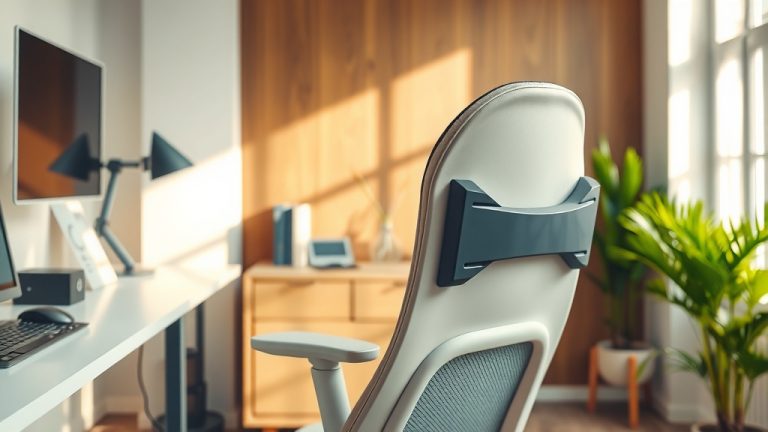
What Is Proper Desk Ergonomics?

Proper desk ergonomics means setting up your workspace so it fits your body naturally and comfortably. It’s about aligning your desk, chair, and computer to support good posture and prevent strain. This setup helps you work more efficiently and reduces the risk of injury over time.
Many people spend hours each day at a desk, so understanding proper desk ergonomics is vital for long-term health. We found that a well-arranged workspace can significantly reduce issues like back pain, neck pain, and even headaches. It creates a healthier working environment for you.
- Adjust your chair for optimal support.
- Position your monitor at eye level.
- Keep your keyboard and mouse close.
- Ensure feet are flat on the floor.
- Take regular breaks to move around.
Let’s walk through exactly how to set up your desk for maximum comfort and health. You’ll be glad you did.
Okay, let’s get you set up for success. Thinking about your desk setup might seem like a small thing. But we found that a proper ergonomic workstation can make a huge difference in your daily comfort and overall health. It’s about preventing discomfort before it starts.
Understanding the Ergonomic Desk Setup
An ergonomic desk setup means arranging your workspace to support your natural posture and reduce strain. It’s not just about buying special equipment. It’s really about how you use what you have. The goal is to keep your body in a neutral, relaxed position while you work. This reduces stress on your muscles and joints.
Many experts emphasize that small adjustments can lead to big benefits (Occupational Safety and Health Administration – OSHA). You want your body to feel balanced and supported. Think of it like building a comfortable nest where you can be productive without pain. This proactive approach helps prevent long-term issues.
Why Ergonomics Matters for Your Health
You might wonder, “Is this really that important?” We understand that feeling. But sitting for long periods, especially with poor posture, can lead to various health problems. These include back pain, neck stiffness, shoulder discomfort, and even headaches. Proper ergonomics helps you avoid these common complaints.
We found that maintaining a good ergonomic setup also helps you stay more focused and productive. When you’re not constantly shifting to find a comfortable position, you can concentrate better on your tasks. It’s about creating an environment that supports both your body and your mind. Your future self will thank you.
Your Chair: The Foundation of Comfort
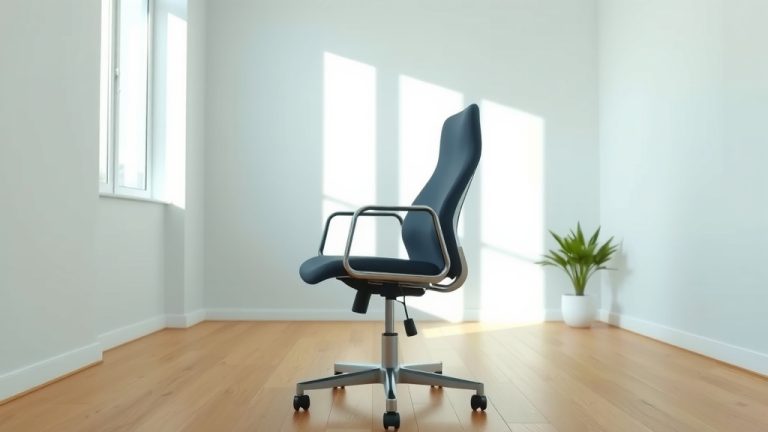
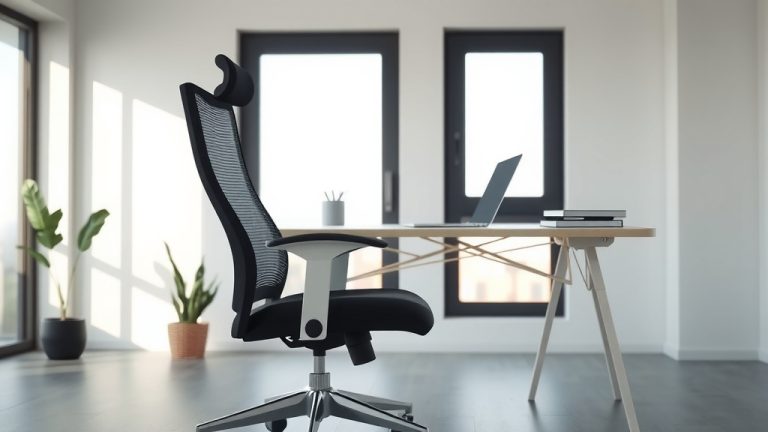
Your chair is perhaps the most important piece of your ergonomic puzzle. It’s where your journey to good posture truly begins. Don’t underestimate its power to support or hinder your comfort. A good chair works with your body, not against it.
Adjusting Your Chair for Optimal Support
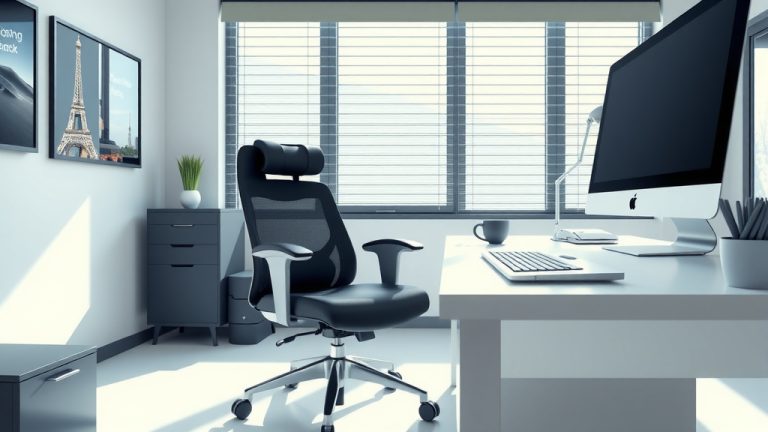
Start with your chair. First, sit all the way back in your chair. Your back should be firmly against the backrest. This immediately encourages better posture. Now, let’s fine-tune the settings.
Seat Height and Foot Position
Adjust the height of your chair so your feet are flat on the floor. If your feet don’t reach, use a footrest. Your knees should be at about a 90-degree angle. This distributes your weight evenly. Avoid dangling your feet, as this can strain your legs and lower back.
We found that this simple adjustment prevents pressure points under your thighs. It also promotes healthy blood circulation in your legs. It’s a foundational step for overall comfort. Don’t skip it!
Backrest and Lumbar Support
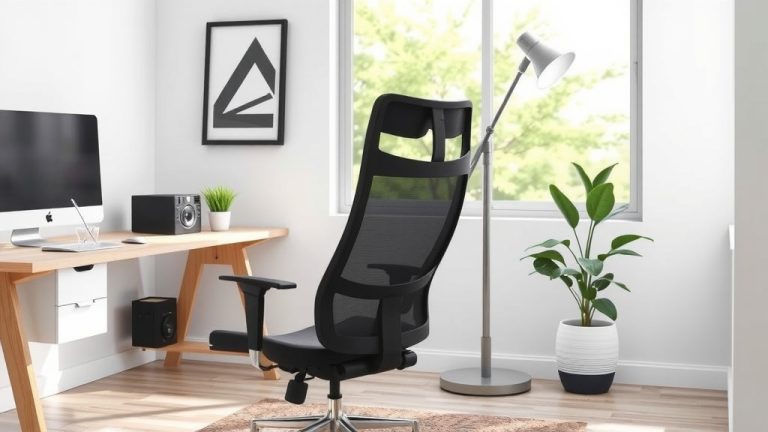
The backrest should support the natural curve of your spine, especially your lower back (lumbar region). Many ergonomic chairs have adjustable lumbar support. Position it so it gently pushes into the small of your back. This helps maintain the natural S-curve of your spine.
A good backrest helps prevent slouching. It keeps your spine aligned and reduces pressure on your discs. If your chair doesn’t have built-in lumbar support, a small cushion or rolled-up towel can work wonders. We’ve seen many people find relief with this trick.
Armrests and Shoulder Relaxation
Adjust your armrests so your arms are gently supported. Your shoulders should remain relaxed, not hunched up. Your elbows should be at about a 90 to 100-degree angle when typing. The armrests should not prevent you from getting close to your desk.
The key here is to reduce tension in your shoulders and neck. If your armrests are too high, your shoulders will lift. Too low, and you’ll slump. Find that sweet spot where your arms feel weightless. This subtle change makes a big difference.
Your Monitor: A Window to Comfort
After your chair, your monitor setup is the next crucial element. Where you place your screen significantly impacts your neck and eye comfort. You want to avoid craning your neck or straining your eyes. Think of your monitor as a perfectly placed window.
Positioning Your Screen for Neck and Eye Health
Proper monitor placement helps keep your head in a neutral position. This reduces strain on your neck and upper back. It also helps with eye comfort, preventing dryness and fatigue. Your eyes deserve a break, too.
Height and Distance Adjustments
Place your monitor directly in front of you. The top of the screen should be at or slightly below eye level. This prevents you from tilting your head up or down. If you wear bifocals, you might need to lower it a bit.
The distance from your eyes to the screen should be about an arm’s length. This is typically 20 to 30 inches. We found this distance allows you to see the entire screen without excessive eye movement. It’s like sitting the right distance from a TV.
Screen Angle and Glare Reduction
Tilt your monitor slightly backward, maybe 10 to 20 degrees. This helps reduce glare from overhead lights. Position your monitor to avoid bright windows behind or in front of it. Glare causes eye strain and fatigue.
Adjust your screen brightness to match your surroundings. Too bright or too dim can be equally harmful to your eyes. We recommend using window blinds or screen filters if glare is a persistent problem. A comfortable view leads to comfortable eyes.
Your Keyboard and Mouse: Hand and Wrist Harmony
Your keyboard and mouse are extensions of your hands. Their placement and use are vital for preventing common issues like carpal tunnel syndrome and wrist pain. You want to keep your wrists straight and relaxed. Imagine playing a piano with good form.
Optimizing Keyboard and Mouse Placement
Keep your keyboard and mouse close to your body. They should be positioned so you can use them with your elbows bent at approximately 90 degrees. This avoids reaching, which strains your shoulders.
Keyboard Position and Wrist Support
Place your keyboard directly in front of you. Avoid using the keyboard’s tilt legs, as this can encourage wrist extension. Keep your wrists straight and relaxed, not bent up or down. Many people benefit from a wrist rest, but use it only during breaks, not while typing. We found that continuous wrist support while typing can actually put pressure on the tendons.
Mouse Proximity and Grip
Your mouse should be right next to your keyboard. This minimizes reaching. Use a mouse that fits your hand comfortably. Your wrist should be straight when gripping and moving the mouse. Experiment with different types of mice, like vertical mice, if you experience discomfort. A relaxed grip is key to avoiding strain.

Breaking It Up: The Power of Movement
Even with the most perfect ergonomic setup, prolonged static postures are not ideal. Your body needs to move. Movement is like a natural reset button for your muscles and circulation. Don’t forget to take micro-breaks.
The Importance of Regular Breaks
We found that regular breaks are just as important as your ergonomic setup. Aim to take a short break every 30 to 60 minutes. Stand up, stretch, walk around for a minute or two. This helps prevent muscle stiffness and improves blood flow.
A quick stroll to get water or chat with a colleague can do wonders. It refreshes your mind and body. Don’t just sit there feeling uncomfortable. Your body will thank you for these small moments of activity. It’s a habit worth building.
Your Ergonomic Checklist for Success
To help you remember all these great tips, here’s a quick checklist. Use it to periodically review your setup and ensure you’re maintaining good habits. Consistency is key to long-term comfort.
- Chair Height: Feet flat on the floor, knees at 90 degrees.
- Back Support: Lumbar support in the small of your back.
- Monitor Position: Top of screen at eye level, arm’s length away.
- Keyboard/Mouse: Close to body, wrists straight, elbows at 90 degrees.
- Regular Movement: Take short breaks every 30-60 minutes.
Making these adjustments might take a little time initially. But the payoff in comfort, reduced pain, and improved productivity is truly worth it. Your well-being at your desk is a priority. We hope this guide helps you create a much healthier workspace. You deserve to work comfortably.
Conclusion
You’ve seen how small changes can make a big difference in your daily comfort and long-term health. Prioritizing proper desk ergonomics isn’t just about avoiding pain; it’s about creating a workspace that supports your well-being. We found that investing a little time in these adjustments pays off immensely in productivity and overall comfort.
Take this checklist and apply it today. Make those adjustments to your chair, monitor, keyboard, and mouse. And remember to move! Your body will thank you for making these ergonomic choices. Start building healthier habits now for a more comfortable working life.
Frequently Asked Questions
How often should I review my ergonomic setup?
We recommend a quick review of your setup monthly, or anytime you feel new discomfort. If you change chairs, desks, or even primary tasks, it’s a good idea to re-evaluate your ergonomics. Your body’s needs can change over time.
Can ergonomics help with existing pain?
Yes, proper ergonomics can often alleviate existing neck, back, or wrist pain. By aligning your body correctly, you reduce strain on affected areas. However, for persistent or severe pain, we always suggest consulting a healthcare professional.
Do I need to buy special ergonomic equipment?
Not necessarily. While specialized equipment can be helpful, many ergonomic improvements can be made with your existing gear. Simple adjustments to your chair, monitor height, and keyboard placement often yield great results. You can start with what you have.
What if my office furniture isn’t adjustable?
If your furniture lacks adjustability, get creative! Use cushions for lumbar support, books or monitor risers for screen height, and footrests if your feet dangle. We found that even makeshift solutions can significantly improve your setup.
Is standing all day better than sitting all day?
Neither extreme is ideal. Prolonged standing can also lead to fatigue and other issues. We found the best approach is to alternate between sitting and standing throughout the day. This keeps your body moving and prevents static postures.