Ergonomic Mouse vs Trackball: Which Fits Your Desk Work? (November 2026)
Choose an ergonomic mouse for broad pointer movement and a trackball for tight desks or less arm movement. Your hand size, control preference and workspace matter more than the device shape alone.
On this page (9 sections)
- Ergonomic mouse vs trackball: what is the main difference?
- Which design fits your desk space?
- How does hand posture change between a mouse and trackball?
- Which is easier for daily office tasks?
- Which connection fits your computer setup?
- What are the main trade-offs between these 4 choices?
- How should you set up an ergonomic mouse or trackball?
- Is an ergonomic mouse or trackball better for gaming?
- What should you choose for your desk work?
Choose an ergonomic mouse for broad pointer movement and a trackball for tight desks or less arm movement. The ergonomic mouse vs trackball decision depends on your hand position, available surface and the way you move a pointer during daily work.
An ergonomic mouse moves across the desk with your hand. A trackball stays mostly still while your thumb rolls the ball, so each design changes the source of pointer movement.
This comparison covers vertical mice and thumb-controlled trackballs for office tasks, browsing and multi-device setups.

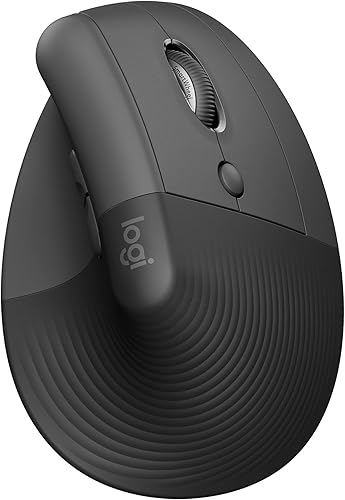 Best for small to medium right hands
Logitech Lift Vertical Ergonomic Wireless Mouse
Ergonomic mouse vs trackball: what is the main difference?
An ergonomic mouse moves across a surface, while a trackball moves the cursor from a stationary position. That basic difference affects desk space, arm movement, learning time and the way you make small pointer corrections.
A traditional or vertical mouse needs clear space beside the keyboard. You guide the entire body across the desk, then return it when you reach the edge of your usable area.
A trackball needs a stable place for your hand, but the body does not need to slide around. Your thumb rolls the ball to move the cursor, which can help when your desk, couch table or writing surface is narrow.
Neither design removes every movement. A mouse still requires clicking, scrolling and repositioning.
A trackball still requires thumb control, hand placement and button access.
If you want to compare another upright design with a stationary ball, read our vertical mouse vs trackball comparison.
Which design fits your desk space?
Choose a trackball when your usable surface is narrow or crowded, and choose a mouse when you have room for repeated pointer movement. Measure the area beside your keyboard, not just the desk's total width.
The Nulea M501 is designed around thumb control and can connect with up to 3 devices through Bluetooth or a USB dongle. Its stated use includes narrow spaces such as a crowded desktop, couch, bed or small writing board.
The Logitech Ergo M575S also keeps cursor control under your thumb. Its shape is intended for tight setups and busy desks, and it connects through Bluetooth or the included Logi Bolt USB receiver.
A vertical mouse needs more open movement space. The Anker uses a USB receiver and a right-hand vertical shape, while the Logitech Lift uses Bluetooth Low Energy or Logi Bolt USB.
Mark the keyboard, mouse area and nearby objects with paper before choosing. If your hand would hit a monitor stand, notebook or desk edge during normal movement, a stationary trackball may be easier to keep in place.
How does hand posture change between a mouse and trackball?
Vertical mice turn the hand into a more upright position, while thumb trackballs keep the hand supported as the thumb controls the pointer. The better choice is the position you can hold without gripping tightly.
The Anker has a right-hand vertical design intended to promote a neutral handshake position. Its optical tracking offers 800, 1200 and 1600 DPI settings, so you can adjust pointer sensitivity for your workspace.
The Logitech Lift has a 57-degree vertical shape, a textured grip and a thumb rest. Logitech describes it as a fit for small to medium right hands, so hand size is a key part of the choice.
The Nulea M501 uses an angled thumb-control design. Its 4 DPI settings are 400, 800, 1200 and 1600, giving you several cursor-speed choices without moving the mouse body.
The Logitech Ergo M575S uses a sculpted thumb trackball shape intended to support the hand and place the forearm in a more natural posture. It has 3 customizable buttons and a maximum sensitivity of 2000 DPI.
Posture is not just a product feature. Keep the mouse or trackball close enough that your elbow stays near your side, and avoid reaching forward for every click.
What Is Proper Desk Ergonomics? covers the wider position of your screen, keyboard, chair and pointing device.
Which is easier for daily office tasks?
A vertical mouse usually feels more familiar, while a trackball can reduce the need to reposition your arm. Pick the control method that matches the tasks you repeat most.
Web browsing, document work and spreadsheet use often involve frequent pointing, selecting and scrolling. A mouse may feel direct because the pointer follows the movement of the whole device.
The Anker includes next and previous buttons for webpage browsing. Its key clicks are not silent, so consider your shared-workspace needs before choosing it.
The Logitech Lift includes easy-to-reach customizable buttons, quiet clicks and a SmartWheel for scrolling. It can connect to Windows, macOS, iPadOS, Chrome OS or Linux through its supported wireless options.
A trackball can be useful when the desk surface is blocked or when you want to keep your palm in one place. The Nulea M501 includes forward and back buttons, but those buttons are not programmable and are not compatible with macOS.
The Logitech Ergo M575S includes 3 customizable buttons, time-saving shortcuts and Smart Actions. It also has quiet clicks, which may matter in a shared office or during calls.
Your work pattern should guide the choice. If you frequently drag across a large screen, check whether thumb control feels natural to you.
If you mainly click, scroll and select within a compact area, either design may work.
Which connection fits your computer setup?
Choose the connection that matches your ports and device switching needs. Wireless options differ, so do not assume every ergonomic mouse or trackball uses Bluetooth.
The Anker uses 2.4 GHz wireless through a USB receiver. It includes a receiver stored in the mouse's bottom, and it requires 2 AAA batteries, which are not included.
The Logitech Lift supports Bluetooth Low Energy or Logi Bolt USB. It includes 1 AA battery and a Logi Bolt USB receiver, with a stated battery life of up to 2 years.
The Nulea M501 can connect to up to 3 devices through Bluetooth or a 2.4G USB dongle. It has a built-in rechargeable battery and uses the included charging cable.
Nulea advises charging through a computer USB port or a 5V charger rather than a fast charger.
The Logitech Ergo M575S connects through Bluetooth or the included Logi Bolt receiver. It includes 1 AA battery and has a stated battery life of up to 18 months.
Check the ports on your computer before choosing a receiver-based model. If you switch between a laptop, tablet and desktop, a multi-device trackball or mouse may reduce repeated pairing.
What are the main trade-offs between these 4 choices?
The Anker and Logitech Lift favor upright mouse movement, while the Nulea and Logitech Ergo M575S favor stationary thumb control. The best fit depends on whether desk movement or pointer control is your bigger concern.
Anker 2.4G Wireless Ergonomic Mouse
The Anker is the straightforward choice for a right-handed user who wants a vertical mouse with adjustable 800, 1200 and 1600 DPI tracking. Its USB receiver connection keeps setup simple on a compatible computer.
It also has next and previous buttons for browsing and enters a power-saving mode after 8 minutes of inactivity. Pressing the right or left button wakes it.
The trade-offs are its right-hand-only design, 2 AAA battery requirement and audible key clicks. Choose it when a USB receiver and upright mouse shape matter more than Bluetooth or quiet operation.
Logitech Lift Vertical Ergonomic Wireless Mouse
The Logitech Lift suits small to medium right hands and uses a 57-degree upright angle. Its textured grip, thumb rest, quiet clicks and SmartWheel make it the more feature-focused vertical mouse in this group.
It supports Bluetooth Low Energy and Logi Bolt USB, and it works across Windows, macOS, iPadOS, Chrome OS and Linux. Its included AA battery has a stated life of up to 2 years.
The main trade-off is hand fit. A shape designed for small to medium right hands may not suit a larger hand, so measure your hand and consider the grip before ordering.
Nulea M501 Wireless Trackball Mouse Ergonomic Thumb
The Nulea M501 suits users who want a rechargeable thumb trackball for a crowded or narrow surface. Its 4 DPI settings and support for up to 3 devices give you control over speed and connection changes.
It includes 6 buttons, but none are programmable. Its forward and back buttons are not compatible with macOS, and the mouse needs to be woken with a click after sleep rather than by rolling the ball.
Choose it when stationary cursor control and rechargeable power matter most. Skip it if you need programmable buttons or depend on forward and back buttons on a Mac.
Logitech Ergo M575S Wireless Ergonomic Trackball Mouse
The Logitech Ergo M575S is the quieter trackball choice for tight setups. Its thumb control, 3 customizable buttons, Bluetooth or Logi Bolt connection and included AA battery cover the main needs of compact office work.
It works with Android, Windows, iOS and macOS, and its stated battery life is up to 18 months. The sculpted shape is intended to fit most hand sizes.
Its sensitivity is listed up to 2000 DPI, but the product data does not give the same set of selectable DPI levels as the other models. Choose it for quiet control and broad device support rather than fine-grained DPI selection.
How should you set up an ergonomic mouse or trackball?
Place the device close to the keyboard, keep your wrist relaxed and set pointer speed before changing your grip. A good shape cannot compensate for reaching across the desk or holding the buttons tightly.
Start with the pointing device near the keyboard's main typing area. Keep your elbow near your side and let the forearm rest rather than reaching from the shoulder.
For a mouse, leave enough room for normal movement without pushing into the desk edge. Lower sensitivity may require more travel, while higher sensitivity can reduce movement but make small selections harder.
For a trackball, place the body where your thumb can roll the ball without stretching. Keep the ball and buttons clean enough for consistent control, following the care instructions for the exact model.
Adjust one change at a time. Try a different pointer speed, move the device closer or relax your grip before deciding that the entire design is wrong.
Your chair and desk height also affect arm position. Pair the pointing device with a suitable Best Ergonomic Office Chair and keep your work surface at a height that lets your shoulders stay relaxed.
Is an ergonomic mouse or trackball better for gaming?
A regular or vertical mouse may suit games that need broad, fast movement, while a trackball can suit users who prefer stationary control. Game type, sensitivity settings and personal familiarity matter more than the label alone.
The Anker includes 800, 1200 and 1600 DPI settings and next and previous buttons. The Logitech Ergo M575S offers thumb control, 3 customizable buttons and up to 2000 DPI sensitivity.
The Nulea M501 has 4 DPI settings, but its buttons are not programmable. That may limit it for games that depend on custom button layouts.
For more specific gaming choices, see our guide to the best trackball mouse for gaming. Mac users can also compare options in our guide to the best trackball mouse for Mac.
What should you choose for your desk work?
Choose a vertical mouse if you want familiar movement with a more upright hand position. Choose a trackball if your desk is crowded or you want the cursor to move without sliding the device.
Pick the Anker for a simple right-hand vertical mouse with 2.4 GHz USB connectivity. Pick the Logitech Lift for a 57-degree shape, quiet clicks and a fit aimed at small to medium right hands.
Pick the Nulea M501 for rechargeable thumb control, 4 DPI levels and up to 3 device connections. Pick the Logitech Ergo M575S for quiet thumb control, customizable buttons and Bluetooth or Logi Bolt USB.
The right ergonomic mouse vs trackball choice is the one you can keep close, control without a tight grip and use comfortably through your normal workday. For the wider setup, continue with our guide to ergonomic keyboards and mice.
Frequently asked questions
Is an ergonomic mouse better than a trackball?
An ergonomic mouse is better when you want familiar pointer movement across a larger desk, while a trackball is better when you want to keep your hand in one place. Neither shape is right for everyone.
Choose by the movement your daily work requires, then check hand fit and connection type.
Is a trackball better for a small desk?
A trackball usually suits a small desk because the cursor moves with the ball while the mouse stays in place. The Nulea M501 and Logitech Ergo M575S both use thumb control, so you need room for your hand but less open surface for mouse movement.
Do vertical mice reduce wrist strain?
Vertical mice place your hand in a more upright position, which may feel more natural for some users. The Anker uses a right-hand vertical design, while the Logitech Lift has a 57-degree shape.
Comfort depends on fit, grip and how you position your arm.
Which is easier to learn, a mouse or trackball?
A regular or vertical mouse is usually easier to learn because you move the whole device to move the pointer. A trackball keeps the device still and uses thumb control, so it can take practice for precise movements, scrolling and button presses.
Can a trackball replace an ergonomic mouse for office work?
Yes, a trackball can replace an ergonomic mouse for office work if its thumb control feels accurate and its buttons suit your routine. It can save desk space and reduce arm movement, but users who prefer sweeping pointer movement may adjust faster to a vertical mouse.


