Logitech Wave Keys MK670 Review: Worth It? (November 2026)
The Logitech Wave Keys MK670 is a strong choice for a coordinated wireless workspace if you want a wave-shaped keyboard, cushioned palm support and a quiet mouse for medium- to large-sized hands. Its main trade-offs are the membrane keyboard, single-color backlighting and the mouse's more limited connection options.
On this page (11 sections)
- Logitech Wave Keys MK670 review: the short answer
- What is included in the Logitech Wave Keys MK670?
- How does the Wave Keys keyboard feel for daily typing?
- Does the compact layout help with mouse position?
- How does the Signature M550 L mouse compare with the keyboard?
- Which wireless connections does the MK670 use?
- What does Logi Options+ add?
- Is the Logitech Wave Keys MK670 comfortable for all-day work?
- What are the main trade-offs?
- How should you choose and set up the combo?
- Logitech Wave Keys MK670 review verdict
The Logitech Wave Keys MK670 is a good fit for a coordinated wireless workspace if you want a compact wave-shaped keyboard, cushioned palm support and a quiet mouse for medium- to large-sized hands. Its strongest advantage is how the keyboard and mouse work together to keep the input area compact.
The main trade-offs are the keyboard's membrane design, single-color backlighting support and the difference between the keyboard's multi-device setup and the mouse's connection limits. We compared the stated features and focused on how they affect daily desk use.
Logitech Wave Keys MK670 review: the short answer
The Logitech Wave Keys MK670 suits people who want one matching keyboard and mouse set instead of choosing each device separately. The compact keyboard can bring the mouse closer to your body, while the wavy key frame and memory foam palm rest support a more relaxed typing position.
The Signature M550 L mouse adds a contoured shape, rubber side grip, SilentTouch technology and SmartWheel scrolling. Its fit is aimed at medium- to large-sized hands, so people with smaller hands should think carefully about reach before choosing this combo.
If you want to compare the wider category first, this ergonomic keyboard and mouse buying guide covers the main design and setup choices.
What is included in the Logitech Wave Keys MK670?
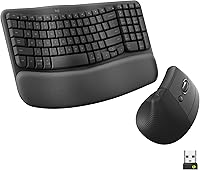
The Logitech Wave Keys MK670 includes the Wave Keys wireless ergonomic keyboard and Signature M550 L wireless mouse. The combo is graphite, uses a QWERTY layout and has 99 keys.
The keyboard uses a wave-shaped design rather than a straight key frame. That shape places the hands, wrists and forearms in a natural typing position, while the cushioned palm rest uses memory foam for added wrist support.
The mouse has an ambidextrous design, optical movement detection and a rubber side grip. Its contoured shape is intended for medium- to large-sized hands, and its SilentTouch technology reduces click noise by 90 percent.
The keyboard and mouse use plastic parts with certified post-consumer recycled plastic. The keyboard includes 61 percent recycled plastic, while the mouse includes 65 percent.
Logitech Wave Keys MK670 Wireless Ergonomic Keyboard: Best for a coordinated wireless workspace

- Wave-shaped keyboard
- Cushioned memory foam palm rest
- Signature M550 L wireless mouse
- Bluetooth and Logi Bolt keyboard connection
- 99-key QWERTY layout
A coordinated keyboard and mouse set for people who want a compact wave-shaped keyboard with palm support and a quiet, contoured mouse. It suits desks where keeping the mouse closer to the body matters.
Pros
- Compact keyboard can bring the mouse closer
- Cushioned memory foam palm rest
- Keyboard works with Bluetooth or Logi Bolt
- Quiet mouse with SmartWheel
- Keyboard and mouse use recycled plastic parts
Cons
- Membrane keyboard may not suit people seeking mechanical switches
- Mouse connection is not the same as the keyboard's Easy-Switch setup
- Single-color backlighting support
How does the Wave Keys keyboard feel for daily typing?
The Wave Keys keyboard is most useful for people who prefer a familiar QWERTY layout with a shaped wrist and hand position. Its 99-key arrangement keeps the keyboard compact while retaining a practical set of keys for everyday work.
The keyboard description is membrane. That matters if you are comparing it with a mechanical keyboard, since the typing feel and sound can differ.
People who want a quieter, conventional office keyboard may prefer this format, while those seeking mechanical switches should look elsewhere.
The wavy key frame changes the position of the key rows across the board. Instead of keeping both hands in one straight line, the design guides them into a curved arrangement.
The palm rest is cushioned and uses memory foam. It gives your wrists a place to rest between typing tasks, but it should not force your wrists upward while you work.
Set the keyboard so your shoulders can stay relaxed and your elbows remain near your sides. Your chair height, desk height and monitor position still matter because an ergonomic keyboard cannot correct a poor workstation by itself.
Does the compact layout help with mouse position?
The compact keyboard can help you bring the mouse closer to your body than with a full-size keyboard. That layout may create a more natural shoulder position, especially on a narrow desk or when your mouse hand feels pushed outward.
The benefit depends on how you use the desk. If you keep a notebook, tablet or other work items beside the keyboard, the saved width may give you more room for those items.
A shorter keyboard does not mean you should crowd the mouse against the keyboard. Leave enough space for the movement range you use during work, then keep the mouse close enough that your upper arm does not reach outward.
Place the keyboard near the center of your body rather than aligning it with one side of the desk. Then position the mouse beside it and check whether both shoulders feel level.
For a closer look at another Logitech ergonomic setup, read our Logitech Wave Keys and Lift combo review.
How does the Signature M550 L mouse compare with the keyboard?
The Signature M550 L mouse is built for medium- to large-sized hands and uses a contoured shape with a rubber side grip. Its ambidextrous design can suit users who want a mouse shape that does not strongly favor one hand.
SilentTouch technology reduces click noise by 90 percent, which may help in shared offices, bedrooms used as workspaces or quiet study areas. The mouse is intended to make workdays quieter without removing the basic clicking controls you need.
SmartWheel supports two scrolling styles. You can scroll line by line for controlled reading or move quickly through long web pages when you need to cover more content.
The mouse uses optical movement detection. Keep the surface stable and use a desk area that gives your hand enough room to move without striking nearby objects.
If you already own a Logitech ERGO K860, our guide to the best mice to pair with the Logitech ERGO K860 can help you compare mouse shapes separately from the keyboard.
Which wireless connections does the MK670 use?
The keyboard connects through Bluetooth or the Logi Bolt USB receiver. Easy-Switch lets you toggle the keyboard between a PC, tablet and phone.
The stated operating system families include Android and Windows. The keyboard connection information also names macOS, iPadOS and ChromeOS, so check the device and operating system combination before setting up a multi-device workflow.
The mouse does not use the same Easy-Switch setup described for the keyboard. That distinction matters if you want to move both input devices between several devices with one control.
The combo uses a USB receiver. For wireless keyboard or combo packaging, the receiver is usually inside the mouse under the battery cover or attached within the packaging, so check both places before assuming it is missing.
Bluetooth may suit a desk where you want to keep a USB port free. Logi Bolt may be useful when you prefer a receiver-based connection, but your device needs a suitable USB connection or adapter.
Logitech provides setup and software information through its official support site. Use the model number 920-012060 when looking for the correct instructions.
What does Logi Options+ add?
The Logi Options+ App lets you personalize the Wave Keys experience with shortcuts. That can help if you repeat the same commands during writing, browsing or office work.
Shortcut changes are most useful when they match a real task. Assign actions you use often, then keep less common commands on their normal keyboard shortcuts so your workflow stays easy to remember.
The app is an optional layer over the physical layout. It does not change the keyboard's wave shape, membrane design or 99-key arrangement.
Before making a shortcut-heavy setup, decide which device you use most often. A carefully chosen set of actions is easier to maintain than changing every key at once.
Is the Logitech Wave Keys MK670 comfortable for all-day work?
The MK670 has several features aimed at long work sessions, including the wave-shaped keyboard, cushioned memory foam palm rest and contoured mouse. These features may support a more relaxed setup, but comfort is personal and depends on the whole desk.
Keep your wrists close to neutral rather than bending them sharply toward the keyboard. The palm rest should support your hands when you pause, not press into the underside of your wrists while you type.
Use light keystrokes and avoid gripping the mouse tightly. The rubber side grip can give your fingers a stable contact point, while the contoured shape supports the hand position the mouse is designed for.
Take short breaks to change posture and look away from the screen. If you have ongoing hand, wrist or shoulder pain, seek professional medical advice instead of relying on a keyboard change alone.
What are the main trade-offs?
The MK670's biggest strength is coordination. The compact keyboard, matching mouse shape and shared graphite finish create a simple way to build a consistent wireless desk.
The compact layout may also improve shoulder position by reducing the distance between the keyboard and mouse. That is useful for people who find a full-size keyboard pushes the mouse too far away.
The first trade-off is the membrane keyboard. It may suit conventional office typing, but it will not satisfy someone specifically looking for a mechanical switch feel.
The second trade-off is the mouse size. Medium- to large-sized hands are the stated fit, so the mouse may feel less natural if you prefer a smaller shape.
The third trade-off is the connection design. The keyboard supports Bluetooth, Logi Bolt and Easy-Switch, while the mouse does not share the same multi-device switching description.
The fourth trade-off is lighting. The keyboard supports single-color backlighting rather than a broad color system, so this is better for basic visibility than for lighting customization.
How should you choose and set up the combo?
Choose the Logitech Wave Keys MK670 if you want a compact wireless keyboard paired with a quiet mouse and your hands fit the mouse's medium- to large-sized design. It is especially sensible when you want the mouse closer to your body than a full-size keyboard allows.
Measure the usable desk width before ordering. Mark the keyboard and mouse area with paper or tape, then check that you can move the mouse without hitting a monitor stand, desk organizer or other item.
Set the keyboard near the center of your body. Keep the mouse beside it, and adjust your chair or desk height so your shoulders stay relaxed while your hands rest over the keys.
Choose Bluetooth or Logi Bolt based on how you use your devices. Bluetooth keeps the setup receiver-free, while Logi Bolt gives you a receiver-based option for the keyboard.
Install the Logi Options+ App only if shortcut customization would help your work. Start with a few repeated actions and change them later if your routine develops.
Logitech Wave Keys MK670 review verdict
The Logitech Wave Keys MK670 earns a 9.6 score for a coordinated wireless workspace because it combines a compact wave-shaped keyboard, cushioned memory foam palm rest and a quiet Signature M550 L mouse.
Pick it if you want a matching set that can bring the mouse closer, supports Bluetooth or Logi Bolt on the keyboard and fits medium- to large-sized hands. Choose another setup if you need mechanical switches, broad lighting customization or the same multi-device controls on both the keyboard and mouse.
For more options, compare the best wireless ergonomic keyboard and mouse combos before deciding which layout fits your desk.
Frequently asked questions
Is the Logitech Wave Keys MK670 ergonomic?
The Logitech Wave Keys MK670 uses a wave-shaped keyboard design that places the hands, wrists and forearms in a more natural typing position. It also has a cushioned memory foam palm rest.
Comfort still depends on your desk height, chair position, screen placement and typing habits.
What comes with the Logitech Wave Keys MK670?
The Logitech Wave Keys MK670 combines the Wave Keys wireless ergonomic keyboard with the Signature M550 L wireless mouse. The keyboard supports Bluetooth and Logi Bolt, and the combo uses a USB receiver.
The mouse is shaped for medium- to large-sized hands.
Can the Logitech Wave Keys MK670 connect to multiple devices?
The keyboard can connect through Bluetooth or Logi Bolt and uses Easy-Switch to toggle between a PC, tablet and phone. Compatible operating system families include Android and Windows, while the keyboard connection information also names macOS, iPadOS and ChromeOS.
Is the Logitech Wave Keys MK670 good for a small desk?
The compact keyboard can suit a small desk because it lets you bring the mouse closer to your body than with a full-size keyboard. That may help preserve shoulder space, but you should still leave room for comfortable mouse movement and keep your keyboard and mouse at the same working height.