Vertical Mouse vs Ergonomic Mouse: Which Shape to Choose? (November 2026)
Choose a vertical mouse if you want an upright handshake grip, and choose another ergonomic mouse shape if that angle feels too unusual. Hand size, wrist position, buttons and connection type should guide your choice.
On this page (10 sections)
- Vertical mouse vs ergonomic mouse: what is the shape difference?
- Which vertical mouse fits each hand size?
- What is the best vertical mouse for a simple setup?
- Which ergonomic mouse is best for a quiet shared desk?
- Is Logitech Lift better for small or medium right hands?
- Is a rechargeable vertical mouse worth choosing?
- How do connection types change the buying decision?
- What should you check before buying a vertical mouse?
- How should you set up and use a vertical mouse?
- Vertical mouse vs ergonomic mouse: which should you choose?
Choose a vertical mouse if you want an upright handshake grip, and choose another ergonomic mouse shape if that angle feels too unusual. In this vertical mouse vs ergonomic mouse comparison, hand size, wrist position, buttons and connection type matter more than the word ergonomic.
For a paired keyboard and mouse, compare ergonomic keyboard and mouse combos.
A vertical mouse is an ergonomic mouse with a more upright body. For a comparison with a stationary pointing device, read ergonomic mouse vs trackball.
Other ergonomic mice can use a gentler tilt, a wider palm rest or a thumb-support shape without placing your hand close to vertical.
We compared 4 models across grip angle, hand fit, controls, wireless options and power. Our score weighs specs, features and buyer feedback against what you're shopping for.

Vertical mouse vs ergonomic mouse: what is the shape difference?
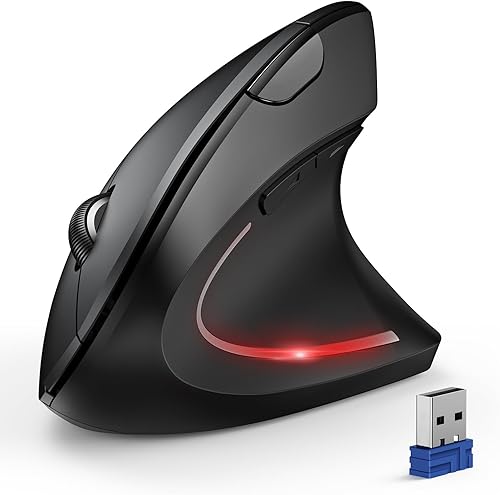
A vertical mouse turns your hand toward a handshake position, while an ergonomic mouse is a wider category of shapes. The upright angle can feel different from a standard mouse because your palm rests more on its side.
The Anker 2.4G Wireless Ergonomic Mouse, TECKNET Ergonomic Mouse, Logitech Lift and ProtoArc EM11 NL are all vertical designs. Their angles and hand fits still differ, so the word vertical does not mean they will feel identical.
A flatter ergonomic mouse may be easier if you want a smaller change from a standard mouse. A vertical model may suit you if twisting your forearm inward feels uncomfortable during long pointing sessions.
The goal is a relaxed grip. Keep your wrist straight enough that you are not bending sharply toward the little-finger side, and move the mouse from your forearm when possible.
Which vertical mouse fits each hand size?
Hand size should come before brand or button count. A mouse that is too large can make your fingers stretch, while one that is too small can leave your palm unsupported.
Logitech Lift is designed for small to medium right hands. ProtoArc EM11 NL is designed for hand lengths under 7.5 inches, so measure from the wrist crease to the tip of your middle finger before choosing.
TECKNET describes its model as best for medium to large hands and recommends allowing about 1 week to adapt to its ergonomic shape. Its dimensions are 4.74 x 2.49 inches.
Anker measures 120 x 62.8 x 74.8 mm and is right-handed. ProtoArc measures 5.43 x 2.72 inches, so its larger listed body may matter if your desk space or hand is smaller.
Use the mouse with your fingers resting naturally on the buttons. If your palm slides forward or your thumb cannot reach its rest without stretching, the shape is probably a poor fit.
What is the best vertical mouse for a simple setup?
The Anker 2.4G Wireless Ergonomic Mouse is the clearest choice for a basic right-handed receiver setup. It uses 2.4 GHz wireless through a USB receiver and offers 800, 1200 and 1600 DPI settings.
This suits users who want an upright handshake grip without extra connection choices to learn. You plug in the receiver, add batteries and start using it on a compatible computer.
The vertical shape places your hand closer to upright than a flat mouse. That can suit right-handed users who spend long periods browsing, writing or working through documents.
Start at 800 DPI while you learn the shape, since slower movement feels steadier for a new vertical grip. Move to 1200 DPI for everyday desktop work, where it balances control and ease of movement.
Use 1600 DPI for faster pointer travel on larger screens once the grip feels comfortable. Higher speed can feel less controlled at first, so make the change gradually.
The mouse has 5 buttons, including next and previous buttons for web browsing. Those controls move you between pages without taking your hand away from the mouse.
They help most if you spend much of the day on websites, and they also help with general navigation. They do not replace a full set of programmable controls.
It enters power-saving mode after 8 minutes of inactivity and wakes when you press the right or left button. That helps preserve battery life between tasks.
Two AAA batteries are required and are not included, so keep spares ready. Replace them when the mouse responds poorly.
The receiver is stored in the bottom of the mouse, so keep it with the mouse when moving between work areas. Check that compartment before packing, because the receiver is needed for the wireless connection.
Set the mouse close to your keyboard and keep your arm relaxed while you adjust. A short learning period is normal, so start with everyday tasks and avoid gripping the body tightly.
The dimensions are 120 x 62.8 x 74.8 mm, with a product weight of 3.4 oz. Use those figures to judge desk space and hand reach before you choose it.
Anker notes that key click sounds are unavoidable. Choose it for its simple connection and upright grip, not for a quiet shared desk.
Which ergonomic mouse is best for a quiet shared desk?
The TECKNET Ergonomic Mouse is the strongest fit for a quiet office or study area. Its left and right buttons are nearly silent, although its other function buttons are not silent.
That matters in a shared room where the main clicks form most of your pointing activity. The side and function buttons can still be heard, so use them less often when other people are nearby.
It has a near-vertical right-handed design aimed at medium to large hands. Allow about 1 week to adapt to the ergonomic shape.
The mouse offers 6 DPI levels from 800 to 4800. Lower settings suit careful pointing, while higher settings reduce arm movement on wide screens.
Changing the DPI makes the light flash, and the number of flashes matches the selected level. Check the flashes when you switch settings so you know which speed is active.
TECKNET supports Bluetooth 5.0 and 3.0 plus 2.4 GHz USB-A. Bluetooth can connect to 2 devices at the same time, which helps when you move between a computer and another device.
The mouse can switch among 3 devices overall, depending on the connection types in use. Press and hold the bottom button for 3 seconds to enter pairing, then short press it to switch modes.
The 2.4 GHz receiver is built into the bottom of the mouse. It uses a USB-A port when connected that way, so Bluetooth may suit you better if your ports are limited.
Two AAA batteries are required and are not included. The mouse enters deep sleep after approximately 10 to 30 minutes of inactivity, and pressing the right or left button wakes it.
Keep the tracking surface clean and place the mouse near your keyboard. A low battery warning appears as a blinking LED, so replace the batteries before control becomes unreliable.
Side buttons are not compatible with macOS, so Mac users should check which controls they need before choosing it.
Is Logitech Lift better for small or medium right hands?
Logitech Lift is the best match here for small to medium right hands that want a defined 57-degree angle. See more wireless ergonomic vertical mice if you want to compare other models.
Its upright shape, softly textured grip and thumb rest support a more upright hand position than a flat mouse.
Lift includes customizable buttons, whisper-quiet clicks and a SmartWheel for scrolling. It connects through Bluetooth Low Energy or the Logi Bolt USB receiver.
The mouse works with Windows, macOS, iPadOS, Chrome OS and Linux. It uses 1 AA battery and is rated for up to 2 years of battery life.
The graphite version includes the mouse, 1 AA battery, a Logi Bolt USB receiver and a quick start guide. Its 125 g weight and 108 x 70 x 71 mm dimensions are useful reference points when comparing desk feel and hand reach.
Logitech Lift is right-handed in the model covered here. A vertical angle can still require an adjustment period, so move slowly at first and avoid squeezing the body.
Is a rechargeable vertical mouse worth choosing?
The ProtoArc EM11 NL makes the most sense if you want rechargeable power and multi-device switching. Its 58-degree vertical design is aimed at small to medium hands under 7.5 inches and connects to up to 3 devices.
It supports dual Bluetooth and 2.4G USB-A. The included Type-C cable is for charging only, and a USB-C receiver is not included.
The built-in battery is a 500mAh Li-Ion type. The mouse has 1000, 1600 and 2400 DPI levels, plus forward and back buttons for web navigation.
Left and right clicks are quiet, but the scroll wheel and forward and back buttons are not. The forward and back buttons are not compatible with macOS, so consider whether those controls matter to your workflow.
ProtoArc recommends 1 to 2 weeks to get used to the shape. Relax your palm instead of holding the mouse tightly while you learn the new hand position.
How do connection types change the buying decision?
Choose the connection that matches your ports and device habits. Bluetooth reduces dependence on a USB-A port, while a USB receiver can be easier when you want a direct plug-in connection.
Anker uses a 2.4 GHz USB receiver. TECKNET supports Bluetooth and 2.4 GHz USB-A, Logitech Lift supports Bluetooth Low Energy and Logi Bolt, and ProtoArc supports dual Bluetooth and 2.4G USB-A.
A laptop with few USB-A ports may favor Bluetooth. A desktop workstation where the receiver can stay plugged in may favor a receiver.
ProtoArc's Type-C cable charges the mouse but does not act as a USB-C receiver. That detail matters if your computer has USB-C ports but no USB-A port.
For a broader look at connection options and desk comfort, read our ergonomic keyboard and mouse guide. If you want to compare wireless models specifically, see our guide to the best ergonomic wireless mouse.
What should you check before buying a vertical mouse?
Check hand orientation, body size, button reach and the adjustment period before choosing a model. These details affect daily control more than a high DPI number.
First, confirm the mouse matches your hand. All 4 products here are right-handed.
Logitech Lift and ProtoArc focus on smaller hands, while TECKNET is described for medium to large hands.
Next, check how much control you need. Anker offers 3 DPI levels, ProtoArc offers 3, Logitech Lift provides adjustable tracking, and TECKNET offers 6 levels up to 4800 DPI.
Then consider sound. TECKNET and ProtoArc have quiet left and right clicks, Logitech Lift has whisper-quiet clicks, and Anker's click sounds are unavoidable.
Finally, plan the learning period. Keep your old mouse nearby for tasks that need speed, but use the vertical model in short sessions until the grip feels natural.
If your hands are small, our guide to the best small ergonomic mouse covers fit-focused options. Color can also narrow the choice, so see the best ergonomic mouse white guide if a light desk setup matters.
For newer laptop ports, compare the best USB-C ergonomic mouse options carefully because USB-C charging is not the same as USB-C receiver support.
How should you set up and use a vertical mouse?
Place the mouse close to your keyboard and let your arm move without reaching outward. A vertical body cannot correct a desk setup that forces your shoulder to stay lifted or your wrist to bend.
Keep your elbow near your side and adjust the chair or desk so your forearm can rest comfortably. Move the mouse with small forearm movements instead of pinching it with your fingertips.
Use a low or medium DPI setting while learning. Higher sensitivity can reduce large arm movements, but it may feel harder to control during the first few sessions.
Keep the tracking surface clear and wipe the mouse with a soft, dry cloth when needed. Follow the model's power instructions, and replace or recharge the battery before pointer movement becomes unreliable.
An ergonomic mouse is one part of a comfortable workstation. Our guide on How to Choose an Ergonomic Office Chair? covers seat height, support and desk position.
You can also compare the Best Ergonomic Office Chair options for the rest of your setup.
Vertical mouse vs ergonomic mouse: which should you choose?
Pick a vertical mouse when you want an upright handshake grip, and pick a flatter ergonomic shape when you want a smaller change from a standard mouse. Among these options, match the model to your hand and connection needs.
Choose Anker for a simple right-handed USB receiver setup with 3 DPI levels. Choose TECKNET for quiet left and right clicks, 6 DPI levels and switching among 3 devices.
Choose Logitech Lift for a small to medium right hand and a 57-degree angle with Bluetooth or Logi Bolt. Choose ProtoArc EM11 NL for a rechargeable 58-degree design aimed at hand lengths under 7.5 inches.
The best vertical mouse vs ergonomic mouse choice is the one you can hold lightly, control accurately and keep close to your body. Give the new angle time to feel familiar, then adjust the model or size if your hand still stretches or grips tightly.
Frequently asked questions
What is the difference between a vertical mouse and an ergonomic mouse?
A vertical mouse is one type of ergonomic mouse. Its upright body places your hand in a handshake-like position, while other ergonomic mice may use a lower tilt, thumb support or a wider palm shape.
Compare the hand angle, size, buttons and connection method instead of treating every ergonomic mouse as vertical.
Is a vertical mouse better than an ergonomic mouse?
A vertical mouse may suit you better if a more upright hand position feels natural and you want to reduce forearm rotation while pointing. Another ergonomic shape may be easier if you prefer a lower profile or need a familiar grip.
The better choice depends on fit and control, not the label alone.
How long does it take to get used to a vertical mouse?
Many people need several days to adjust to an upright shape, and the ProtoArc EM11 NL guidance allows 1 to 2 weeks. Start with short work periods, keep your hand relaxed and avoid gripping the mouse tightly while your pointing accuracy improves.
Are vertical mice good for small hands?
Some vertical mice are made for small hands, but size varies by model. Logitech Lift is designed for small to medium right hands, while ProtoArc EM11 NL is aimed at hand lengths under 7.5 inches.
Measure your hand and compare the mouse dimensions before choosing.
Should I choose Bluetooth or a USB receiver?
Choose Bluetooth when you want to save a USB-A port or connect devices without a receiver. Choose a USB receiver when you want a simple plug-in setup.
Some mice offer both, such as the TECKNET, Logitech Lift and ProtoArc EM11 NL, so check your computer's ports and operating system.