9 Best Ergonomic Trackball Mice (November 2026)
The best ergonomic trackball mice include the TECKNET Wireless Trackball Mouse for larger hands and small desks, the Nulea M501 Wireless Trackball Mouse Ergonomic Thumb for flexible wireless use, and the Logitech Ergo M575S Wireless Bluetooth Trackball Mouse for long battery life.
On this page (6 sections)
The best ergonomic trackball mouse for most small desks is the TECKNET Wireless Trackball Mouse, because its thumb control, 16° angle, 3-device connection and rechargeable battery cover the main reasons people choose a stationary pointing device. Logitech is a strong alternative for long battery life, while Kensington suits buyers who want a wired ambidextrous design.
For most people, the appeal starts with space. A traditional mouse needs room to slide, but a trackball stays in place while you roll the ball with your thumb.
That small change can make a crowded desk feel calmer when a keyboard, laptop, notebook and phone already compete for room. It also changes a long workday, because your hand can settle in one position while your thumb does the moving.
Comfort still depends on the shape around your palm, and a trackball usually needs a learning period. Some models suit larger hands, some are right-handed only, and some offer silent clicks or adjustable tilt.
Connection and power also matter. Wireless models keep the desk tidy and move between devices, but they need charging or batteries.
A wired model removes that concern, yet it ties the mouse to one place. Our picks focus on hand fit, ball position, angle, connection options, battery type and DPI range.
We compared how each model suits a small desk, a shared space or a multi-device setup. A trackball keeps the base in one place while your thumb or fingers move the ball.
That can free up desk space and reduce repeated arm movement, but the right fit still depends on hand size, angle, button layout and connection type. For a wider overview, read our ergonomic keyboard and mouse guide.
If you are comparing movement styles, our ergonomic mouse vs trackball comparison explains the main trade-offs.
Our picks at a glance
-
1
 Best for larger hands and small desks
TECKNET Wireless Trackball Mouse
9.7/10 our score
See it on Amazon -
2
 Best for flexible wireless use
Nulea M501 Wireless Trackball Mouse Ergonomic Thumb
9.6/10 our score
See it on Amazon -
3
 Best for long battery life
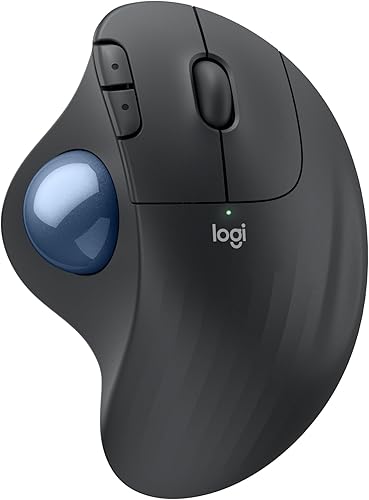
Logitech Ergo M575S Wireless Bluetooth Trackball Mouse
9.4/10 our score
See it on Amazon
- 4
 Check it
Logitech Ergo M575S Wireless Ergonomic Trackball Mouse
Best for a familiar Logitech setup - 5
 Check it
ProtoArc EM02 Wireless Trackball Mouse
Best for an adjustable angle - 6
 Check it
Kensington Expert Trackball Mouse
Best for ambidextrous wired control - 7
 Check it
seenda Wireless Trackball Mouse
Best for a colorful multi-device desk - 8
 Check it
Nulea Wireless Trackball Mouse Ergonomic 21.7 Tilt
Best for silent shared spaces - 9
 Check it
SABLUTE Ergonomic Wireless Trackball Mouse
Best for high DPI adjustment
The best ergonomic trackball mouse options
The TECKNET is the strongest all-around choice here, followed by the Nulea M501 and Logitech M575S. The remaining picks focus on adjustable angles, silent clicks, wired reliability, color or high DPI control.
Our score weighs specs, features and buyer feedback against what you are shopping for. We compared the stated shape, ball control, connection options, power system, adjustment range and desk use.
| Product | Best for | Angle | Connections | Size | Our score |
|---|---|---|---|---|---|
| TECKNET Wireless Trackball Mouse | larger hands and small desks | 16° vertical | Bluetooth, USB, 2.4G | 5.5 x 4.1 x 2 in | 9.7 |
| Nulea M501 Wireless Trackball Mouse Ergonomic Thumb | flexible wireless use | Bluetooth and USB | 9.6 | ||
| Logitech Ergo M575S Wireless Bluetooth Trackball Mouse | long battery life | Bluetooth and USB | 9.4 | ||
| Logitech Ergo M575S Wireless Ergonomic Trackball Mouse | a familiar Logitech setup | 6 x 4.2 in | 9.2 | ||
| ProtoArc EM02 Wireless Trackball Mouse | an adjustable angle | 0° or 15° | 9.1 | ||
| Kensington Expert Trackball Mouse | ambidextrous wired control | 9.0 | |||
| seenda Wireless Trackball Mouse | a colorful multi-device desk | Bluetooth and USB | 8.9 | ||
| Nulea Wireless Trackball Mouse Ergonomic 21.7 Tilt | silent shared spaces | 21.7° tilt stand | 8.8 | ||
| SABLUTE Ergonomic Wireless Trackball Mouse | high DPI adjustment | 0° or 18° | 8.6 |
TECKNET Wireless Trackball Mouse: Best for larger hands and small desks
- 16° vertical angle
- Bluetooth and 2.4G connection
- Up to 3 devices
- 500mAh rechargeable battery
- 5 DPI levels
The TECKNET combines a tilted shape, thumb trackball, 3-device switching and rechargeable power. Its larger shape suits medium to large hands.
Pros
- 16° angle
- Rechargeable
- 3-device connection
Cons
- Designed for medium to large hands
- Right-handed
TECKNET is the best ergonomic trackball mouse here for medium to large right hands that need a compact pointing area. Its 16° vertical angle raises the hand slightly, while the thumb ball moves the cursor without sliding the base across the desk.
Bluetooth and 2.4G connections support up to 3 devices, so one mouse can serve a computer and other paired devices. The 500mAh rechargeable battery is designed for quick charging, with 15 minutes stated to power a full day of use.
Five DPI levels run from 100 to 1200. Start at a lower setting while learning thumb control, then increase it when the pointer feels too slow.
The 5.5 x 4.1 x 2 in shape is a better match for medium to large hands than very small hands.
Choose TECKNET if you want a tilted rechargeable mouse with flexible connections. Its right-handed shape and larger design are the main limits.
Nulea M501 Wireless Trackball Mouse Ergonomic Thumb: Best for flexible wireless use
- Thumb control
- 4 DPI levels
- Bluetooth and USB receiver
- Up to 3 devices
- Rechargeable battery
The M501 keeps the hand mostly still and switches between 3 devices. Its 4 DPI levels make it easier to start slowly and increase cursor speed later.
Pros
- 3-device connection
- Rechargeable
- 4 DPI levels
Cons
- Buttons are not programmable
- Forward and back buttons are not compatible with macOS
The Nulea M501 is a good fit for buyers who want a rechargeable thumb trackball with 3-device wireless switching. Bluetooth and the USB receiver give you two connection paths, and the receiver stores in the mouse base.
That storage detail is easy to overlook, but it helps when you carry the mouse between a laptop and a desktop. You can keep the receiver tucked away instead of leaving it in a USB port or losing it in a bag.
Its 4 DPI levels run from 400 to 1600. A lower setting can make the first week easier, while a higher setting reduces the thumb movement needed across a wide screen.
The range gives you room to adjust as your control improves. Starting low lets you learn how the ball responds, and moving up later can make long documents and multiple monitors feel quicker.
The mouse enters sleep mode after 30 minutes of inactivity and wakes when you click a key. That behaviour suits a desk you return to throughout the day, although it is worth remembering that scrolling the ball alone will not wake it.
Charging uses the included cable, and the product information advises using a 5V charger or a computer USB port rather than a fast charger. That is a small setup point to keep in mind when you first unbox it.
The M501 has 6 buttons, but they are not programmable. Its forward and back buttons are not compatible with macOS, so Mac users should treat those buttons as a limitation rather than a promised shortcut.
Choose this model for a flexible wireless setup and rechargeable power. Pick another option if button programming or full Mac shortcut support is central to your work.
Logitech Ergo M575S Wireless Bluetooth Trackball Mouse: Best for long battery life
- Quiet clicks
- Bluetooth and Logi Bolt receiver
- Up to 18 months battery life
- 3 customizable buttons
- 2000 DPI
The M575S is a compact thumb-control option for tight setups, with quiet clicks and an included AA battery rated for up to 18 months.
Pros
- Long battery life
- Quiet clicks
- Customizable buttons
Cons
- Right-handed
- Uses an AA battery
The Logitech ERGO M575S is the best ergonomic trackball mouse here for buyers who want long battery life and a familiar Logitech connection system. Its sculpted shape supports the hand while the thumb ball keeps the base still.
That stationary design suits a desk where space is tight. You do not need a clear track for the mouse to move, so it can sit close to a keyboard or at the edge of a small work surface.
Bluetooth and the included Logi Bolt receiver provide two connection options. One included AA battery is rated for up to 18 months, which suits a desk where charging a rechargeable mouse would be inconvenient.
For many users, that long battery claim changes the daily routine. You can set the mouse up and focus on work instead of thinking about the next charge, and a standard AA battery is simple to replace when the time comes.
Quiet clicks are useful in shared rooms, and 3 customizable buttons add shortcut options through the Logi Options+ app on supported Windows and macOS versions. The mouse is right-handed and works with personal computers and tablets.
The shape is also meant to support a more natural forearm position through the day. That will feel different from a flat mouse, so it helps to give the posture a few days of use before judging it.
Choose the M575S when low battery maintenance matters most. For a rechargeable Logitech-style alternative, compare the other M575S version below and check the exact button and connection details before ordering.
Logitech Ergo M575S Wireless Ergonomic Trackball Mouse: Best for a familiar Logitech setup
- Sculpted ergonomic shape
- Bluetooth and Logi Bolt receiver
- Up to 18 months battery life
- 3 customizable buttons
- Recycled plastic
This M575S version pairs thumb control with a sculpted shape and broad operating-system support. It suits buyers who want a Logitech wireless workflow.
Pros
- Long battery life
- Broad compatibility
- Recycled plastic
Cons
- Right-handed
- Button count differs from the other M575S data
This Logitech M575S version suits buyers who want the same general thumb-control approach with compatibility across Android, Windows, iOS and macOS. Its 6 x 4.2 in size gives the hand a broad resting area.
A broader resting area can suit someone who wants the palm to feel supported rather than perched on a smaller body. At the same time, it is worth checking the dimensions against your setup, since a larger mouse needs a little more room beside the keyboard.
It connects through Bluetooth, and the included contents include the mouse, Logi Bolt receiver, 1 AA battery and documentation. Battery life is rated for up to 18 months.
That combination keeps setup straightforward for a main desk. Bluetooth handles the wireless link, while the included receiver and battery mean you have the key parts in the box.
The shape is right-handed and tracks with a maximum sensitivity of 2000 DPI. The higher maximum does not have to be your starting point, and a lower setting may feel steadier while you learn thumb control.
The recycled-plastic enclosure supports a lower-material-impact choice without changing the basic desk use. Logitech also gives this model 3 customizable buttons and a sculpted form intended to support a more natural forearm position.
Choose it for broad operating-system support and long battery life. Compare the exact button count and connection details with the other M575S entry because the data differs between these versions.
ProtoArc EM02 Wireless Trackball Mouse: Best for an adjustable angle
- 0° or 15° angle
- Bluetooth and 2.4G wireless
- USB-C rechargeable
- 5 DPI levels
- Quiet clicks
The EM02 lets you choose between a flat and tilted position. Its USB-C charging, quiet clicks and 2-device connection suit changing desk setups.
Pros
- Adjustable angle
- USB-C charging
- 90-day standby
Cons
- Forward and back buttons are not compatible with macOS
- Requires a learning period
The ProtoArc EM02 is the best ergonomic trackball mouse here if you want to change the hand angle. Its hinge lets you use a flat 0° position or a tilted 15° position, so you can adjust the base as your posture changes.
Bluetooth and 2.4G wireless support switching between devices. The USB-C rechargeable battery has a stated 90-day standby time, and the box includes a USB-C cable, USB receiver, manual and mouse.
Five DPI settings run from 200 to 1600. Start at 200 or 400 DPI while learning, then raise the setting when the ball feels easier to control.
Quiet clicks work well for late-night or shared-space use.
Dust can collect around the ball and its 3 white rollers. Clean those areas when movement feels sticky or imprecise.
Forward and back buttons are not compatible with macOS.
Choose ProtoArc for angle adjustment and USB-C charging. Its learning period and Mac button limit are the main trade-offs.
Kensington Expert Trackball Mouse: Best for ambidextrous wired control
- 55mm ball
- Detachable wrist rest
- Scroll ring
- Customizable buttons
- Wired USB-A
The Kensington Expert uses a large 55mm ball, a scroll ring and a detachable wrist rest. Its wired USB-A connection avoids battery charging.
Pros
- Ambidextrous
- Large ball
- Detachable wrist rest
Cons
- Wired
- Larger desk footprint
The Kensington Expert is the best ergonomic trackball mouse here for ambidextrous wired use. Its large 55mm ball and optical tracking give your fingers a broad control surface, while the scroll ring helps move through long documents.
The detachable wrist rest supports the hand and wrist, and the 4-button design can be customized through Kensington software. A wired USB-A connection means there is no battery to charge or wireless pairing to manage.
This is a larger desk device than the thumb-controlled options. Measure the area beside your keyboard before choosing it, especially if your desk is narrow.
The ambidextrous design is useful when you want to change hands or share the device. Left-handed gamers can compare left-handed gaming mice designed for that grip.
Choose Kensington for a large ball, scroll ring, wrist rest and dependable cable connection. Choose a wireless thumb model if you need a smaller footprint or mobile use.
seenda Wireless Trackball Mouse: Best for a colorful multi-device desk
- Thumb-accessible ball
- Bluetooth and 2.4G USB
- Up to 3 devices
- Rechargeable design
- 5 DPI levels
The pink seenda offers stationary thumb control, 3-device switching and rechargeable power. Its detachable ball also supports routine cleaning.
Pros
- 3-device connection
- Rechargeable
- Detachable ball
Cons
- Right-handed
- Side buttons may be limited on Mac
The seenda Wireless Trackball Mouse suits buyers who want a colorful right-handed option with rechargeable power. Its pink contoured body keeps the base still while the thumb-accessible ball controls the pointer.
Bluetooth and the 2.4G USB receiver support up to 3 devices. The mode button sits on the back, and the mouse works with Windows, Mac OS and Android devices.
A charging cable is included.
Five DPI levels run from 200 to 1600, giving you a slow starting point for learning. The detachable roller ball makes routine cleaning easier, which matters because dust and skin oil can make a trackball feel sticky over time.
The mouse is 116 g and has a 10 m range. Side buttons may be limited on Mac OS, and users with hands under 17.5 cm may find the shape large at first.
Choose seenda for color, wireless switching and a rechargeable design. Skip it if you need professional image-editing precision or full Mac side-button support.
Nulea Wireless Trackball Mouse Ergonomic 21.7 Tilt: Best for silent shared spaces
- 21.7° tilt stand
- Silent buttons and scroll wheel
- Bluetooth and USB receiver
- Up to 3 devices
- 4 DPI levels
The M511 adds a steep 21.7° stand and silent operation to a right-handed thumb trackball. It fits shared offices and quiet work periods.
Pros
- Silent operation
- 21.7° stand
- 3-device connection
Cons
- Buttons are not programmable
- Forward and back buttons are not compatible with macOS
The Nulea M511 is the best ergonomic trackball mouse here for silent shared spaces. Its 21.7° tilt stand raises the right-handed mouse, while the thumb ball keeps arm movement low.
The mouse connects through Bluetooth or its USB receiver and can pair with up to 3 devices. Four DPI levels run from 400 to 1600, so you can choose slower control for detailed work or faster movement for multiple screens.
Every button and the scroll wheel are designed for silent operation. That makes it useful in a shared office, library-style room or late-night workspace where click noise is distracting.
The 6 buttons are not programmable, and forward and back buttons are not compatible with macOS. The data also identifies Windows 11 and macOS 14 Sonoma as minimum operating systems.
Choose M511 for quiet operation and a pronounced tilt. Choose the M501 if you need broader compatibility information or a rechargeable thumb model with a lower angle.
SABLUTE Ergonomic Wireless Trackball Mouse: Best for high DPI adjustment
- 0° or 18° angle
- Bluetooth and 2.4G
- Up to 3 devices
- 5 DPI levels to 4800
- USB-C rechargeable
The SABLUTE gives you two angles, 3-device wireless connection and a wide DPI range. Its driver can customize buttons on supported non-Mac systems.
Pros
- 0° and 18° angles
- Up to 4800 DPI
- Programmable buttons with driver
Cons
- Driver is not compatible with macOS
- Right-handed
The SABLUTE MAM1 Pro is the best ergonomic trackball mouse here for buyers who want high DPI adjustment and two angle choices. Its base switches between 0° and 18°, allowing a flat or raised hand position.
Bluetooth and 2.4G wireless connections support up to 3 devices. The USB receiver stores in the base, and USB-C charging supports the built-in rechargeable battery.
Five DPI levels run from 800 to 4800.
The included driver can customize button functions on supported systems, but it is not compatible with Mac OS. Forward and back buttons are also not compatible with Mac OS.
The mouse includes a charging cable, manual, trackball mouse and USB receiver.
Quiet clicks and optional backlighting suit a student desk, office or shared room. The right-handed shape measures 5.36 x 3.94 in and weighs 12.64 oz.
Choose SABLUTE for a wide DPI range and programmable controls on supported systems. Choose another model if you need Mac-compatible button customization.
How do you choose an ergonomic trackball mouse?
Choose the ball position first. Thumb control feels closer to a traditional mouse, while the Kensington Expert uses a large central ball controlled by your fingers.
That choice shapes the whole experience. Thumb control keeps a familiar hand layout, while finger control spreads the work across several fingers.
Then match the angle to your wrist and forearm. TECKNET uses a 16° angle, Nulea uses a 21.7° stand, ProtoArc switches between 0° and 15°, and SABLUTE switches between 0° and 18°.
An adjustable model gives more ways to find a comfortable position. You can test a flat position against a raised one over a few days.
Hand size matters too. TECKNET is designed for medium to large hands, while seenda warns that users with hands under 17.5 cm may find its shape large.
Measure your hand and compare it with the stated dimensions before ordering.
Next, check button layout. Some models offer 6 buttons, some offer 3 customizable buttons, and the Kensington Expert uses a 4-button design with a scroll ring.
Extra buttons can speed up navigation, but only if they work with your operating system. Several models note that forward and back buttons are not compatible with macOS, so check that point if you use a Mac.
Connection type should match your desk as well. Wireless models suit multi-device use and travel, while a wired model suits a fixed workstation where you want a direct connection.
DPI range also deserves attention. A wider range lets you start slowly and increase speed later, while a narrower range may be enough if you only use one screen.
Think about care too. A ball that can be removed for cleaning is easier to maintain when dust and skin oil build up over time.
Start with factors you cannot change easily, such as hand size, handedness and ball position, since the basic shape will stay with you every day.
Are wireless trackball mice better for small desks?
Wireless trackball mice are usually easier to place on a small desk because no cable needs a route to the computer. The TECKNET, Nulea, Logitech, ProtoArc, seenda and SABLUTE models all offer wireless connection options.
That freedom helps you place the mouse beside a laptop, move it closer to a keyboard, or shift it slightly as your posture changes during the day.
Multi-device switching is another reason people choose wireless. Several models connect to up to 3 devices, so you can move from a work laptop to a home computer or tablet with a button press.
Power is the main trade-off. Rechargeable models need regular charging, while the Logitech models use an included AA battery rated for up to 18 months.
Those AA models suit a desk where you prefer not to think about charging. Rechargeable models suit someone who already charges a phone or laptop nearby and does not want disposable batteries.
A wired model can still be the better choice when you want continuous USB power and no pairing or battery care. The Kensington Expert uses wired USB-A and adds ambidextrous control, a scroll ring and a detachable wrist rest.
The wired route also suits a shared workstation. You can plug it in and leave it ready without checking a battery level or reconnecting Bluetooth.
Its larger footprint is the other side of that choice. It needs more desk space than a compact thumb trackball, so measure the area beside your keyboard before you commit.
Wireless range and receiver storage are worth checking when you travel. A receiver that stores in the base is easier to carry than one that must stay in a laptop port.
For more wireless choices, see our guide to the best wireless trackball mouse. If you need a compact travel setup, compare the best travel trackball mouse options.
What DPI setting should you use?
Start with a lower DPI setting while learning trackball control, then increase it when the pointer feels too slow. ProtoArc recommends beginning at 200 or 400 DPI, while the M501 starts at 400 DPI.
That gradual approach helps more than it might seem. At a low setting, you learn how much ball movement creates a small cursor move, and that builds control without overshooting icons and menus.
Higher DPI can move the pointer farther with less ball movement, but it can also feel less precise at first. Use the lowest setting that lets you reach the screen without repeated thumb or finger movements.
Think about your screen size as well. A single laptop display may need less speed than a wide monitor or a dual-screen setup, so the best setting can change when your workspace changes.
Take a week or two to adjust. Many trackball users find that the first few days feel awkward, then the motion becomes more natural once the hand settles into a steady position.
Keep the mouse at a comfortable height and distance from the keyboard while you learn. A good position makes the ball easier to reach and reduces the need to stretch or twist.
A trackball also benefits from a clear surface and regular care. Clean the ball and rollers when movement becomes sticky, jumpy or less accurate.
Dust, oil and debris can build up even with normal use. A quick clean can restore smoother movement and is usually simpler than changing the DPI again.
Low battery power can also affect responsiveness on some models, so check the charge if the cursor starts to behave oddly.
If you replace a worn ball, compare our guide to the best trackball mouse ball replacement.
Change one setting at a time so you know what helped. Raise the DPI in small steps, give each step a day or two, and keep the setting that feels accurate rather than simply fast.
More guides on this topic
If you want to keep exploring angles, wrist support and hand fit, these guides cover related comfort topics in more detail. They are useful next steps once you know whether you prefer thumb control or finger control.
- Best Trackball Mice for Carpal Tunnel
- Best Kensington Trackball Mice
Read them alongside the product details above, and check operating system limits before you choose a model for Mac use.
Which ergonomic trackball mouse should you buy?
Pick the TECKNET if you want the strongest mix of angle, rechargeable power and 3-device wireless use for a medium to large right hand. Pick the Nulea M501 for a flexible thumb-control setup with 4 DPI levels.
Choose the Logitech M575S for long battery life, the ProtoArc EM02 for an adjustable angle, or the Kensington Expert for wired ambidextrous control. For special needs, compare the best trackball mouse for small hands, best trackball mouse for large hands, best Sanwa trackball mouse and best trackball mouse with programmable buttons.
If gaming is the priority, use our best trackball mouse for gaming guide. Mac users should also review the best trackball mouse for Mac before choosing a model with limited side-button support.
Our top 3 picks at a glance
-
1
Best for larger hands and small desks
TECKNET Wireless Trackball Mouse
9.7/10 our score
See it on Amazon -
2
Best for flexible wireless use
Nulea M501 Wireless Trackball Mouse Ergonomic Thumb
9.6/10 our score
See it on Amazon -
3
Best for long battery life
Logitech Ergo M575S Wireless Bluetooth Trackball Mouse
9.4/10 our score
See it on Amazon
Frequently asked questions
Are trackball mice ergonomic?
A trackball mouse can reduce the need to move your wrist and arm because the cursor moves when you roll the ball. That may suit a small desk or users who prefer stationary pointing.
Comfort still depends on hand size, thumb position, angle and how you set the cursor speed.
Is a vertical mouse better than a trackball?
A vertical mouse changes the hand angle while still moving across the desk. A trackball keeps the base in place and uses a thumb or finger to move the cursor.
Choose a vertical mouse if desk movement feels natural, or a trackball if limited space matters most.
Compare both in our vertical mouse vs trackball guide.
How long does it take to get used to an ergonomic trackball mouse?
Many first-time users need about 1–2 weeks to adjust to thumb control and cursor movement. Start with a lower DPI setting, keep the mouse in a comfortable position and increase sensitivity after control feels steady.
Regular cleaning can also help prevent a sticky ball.
Can a trackball mouse help with carpal tunnel discomfort?
A trackball may reduce wrist and arm movement, but it isn't a treatment for carpal tunnel syndrome. Choose a shape that keeps your hand relaxed and stop if use increases discomfort.
For ongoing pain, ask a qualified health professional for advice.
See our trackball mouse guide for carpal tunnel.