Logitech Lift Mouse Review: Worth It? (November 2026)
The Logitech Lift is a strong ergonomic mouse for small to medium hands, with a 57-degree upright grip, quiet clicks, SmartWheel scrolling and Bluetooth or Logi Bolt connection. Choose the color and package that fit your desk, and check the left-handed version if you use your left hand.
On this page (10 sections)
- Logitech Lift mouse review: is it worth choosing?
- What makes the Logitech Lift different?
- Logitech Lift models compared
- Is the Logitech Lift comfortable for daily work?
- How does the Logitech Lift work with a left hand?
- Connection, buttons and scrolling
- How should you set up the Logitech Lift?
- What are the main Logitech Lift trade-offs?
- Logitech Lift versus the Wave Keys combo
- Final verdict: which Logitech Lift should you choose?
The Logitech Lift is a compact vertical mouse for small to medium hands, with a 57-degree grip that places your hand in a more upright position. For more wireless options, compare ergonomic vertical wireless mice.
It combines quiet clicks, SmartWheel scrolling, customizable buttons and wireless connection through Bluetooth Low Energy or Logi Bolt.
This Logitech Lift mouse review compares the Rose, Graphite and Sand versions supplied for this post. The core design is similar, but the Graphite model has the clearest multi-device details, while the other two offer different color and package options.
Logitech Lift mouse review: is it worth choosing?
The Logitech Lift is worth considering if you want a compact upright mouse for daily computer work and your hand fits its small to medium right-hand design. Its main trade-off is that the vertical grip changes familiar mouse movements, so you may need an adjustment period.
Compare vertical and ergonomic mouse shapes if you are still deciding which style suits your hand.
The 57-degree angle is the central feature. Logitech says the shape promotes a more natural forearm posture, while the softly textured grip and thumb rest give your hand a defined place to rest.
The Lift is also a useful choice if quiet office controls matter. Its clicks are designed to be whisper quiet, and the SmartWheel can shift between precise scrolling and faster scrolling.
For a broader look at this category, our ergonomic keyboard and mouse guide explains how the keyboard and mouse should work together at a desk.
What makes the Logitech Lift different?
The Logitech Lift uses an upright body instead of the low, flat shape found on a standard mouse. You place your hand around the grip rather than resting it flat across the top.
That position can change the way you move the pointer. Small movements may feel unfamiliar at first because your wrist and forearm are not using the same angle as they do with a conventional mouse.
The Lift is designed around small to medium hands. The stated body dimensions are 108 x 70 x 71 mm, and the listed weight is 125 g.
Its buttons are easy to reach, and the descriptions specify customizable controls. Logitech also describes Logi Options+ software for assigning shortcuts, with the software available for Windows and macOS.
A vertical mouse is not automatically the right choice for every hand. Compare the Lift with other shapes in our guide to the best ergonomic vertical mouse before deciding.
Logitech Lift models compared
The Graphite Logitech Lift scores highest here because its product data clearly covers laptop, personal computer and tablet use, plus Easy-Switch for up to 3 devices. Rose and Sand remain close alternatives when color or the included package matters more.
Our score weighs specs, features and buyer feedback against what you're shopping for.
1. Logitech Lift Vertical Ergonomic Wireless Mouse: Rose
Logitech Lift Vertical Ergonomic Wireless Mouse - Rose: Best for a soft color

- 57-degree vertical shape
- Small to medium right hands
- Bluetooth Low Energy or Logi Bolt USB
- Whisper-quiet clicks
- SmartWheel scrolling
The Rose Lift has the same upright shape and wireless controls as the other versions here. It suits a small to medium right hand if you want an ergonomic mouse in a lighter color.
Pros
- 57-degree upright grip
- Quiet clicks and SmartWheel
- Bluetooth and Logi Bolt connection
- Up to 24 months of battery life
Cons
- Right-hand version
- Best fit is limited to small to medium hands
The Rose model is a right-hand Lift for small to medium hands. Its softly textured grip, thumb rest and 57-degree body create the same upright working position as the other versions in this comparison.
It connects through Bluetooth Low Energy or the Logi Bolt USB receiver. The product data lists Windows, macOS, iPadOS, Chrome OS and Linux support, with minimum operating-system details that include ChromeOS 134, Windows 10 and iOS 14.
The Rose finish is the main reason to choose this version over the Graphite and Sand options. It also includes 1 AA battery and a Logi Bolt USB receiver, with a stated battery life of up to 24 months.
The mouse has 6 buttons, quiet clicks and SmartWheel scrolling. Four customizable buttons can be assigned through Logi Options+ software, which may help if you repeat shortcuts across work apps.
2. Logitech Lift Vertical Ergonomic Wireless Mouse: Graphite
Logitech Lift Vertical Ergonomic Wireless Mouse - Graphite: Best for flexible desk setups
- 57-degree vertical shape
- Small to medium right hands
- Bluetooth Low Energy or Logi Bolt USB
- Easy-Switch for up to 3 devices
- SmartWheel scrolling
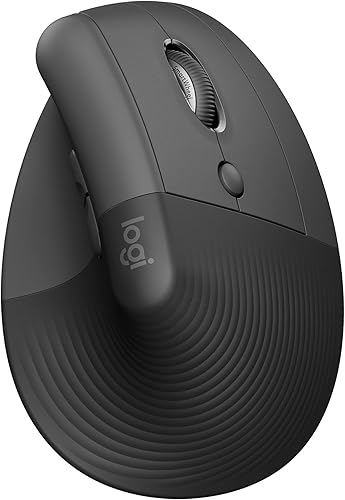
The Graphite version is the most flexible pick here for people who move between devices. It combines the Lift shape with Bluetooth, Logi Bolt and Easy-Switch support.
Pros
- Connects with Bluetooth or Logi Bolt
- Easy-Switch supports up to 3 devices
- Quiet clicks and customizable buttons
- Works with laptop, personal computer and tablet
Cons
- Right-hand version
- Small to medium hand fit may not suit larger hands
The Graphite version is the best fit for a desk where you switch between several devices. Its product data specifies Easy-Switch for up to 3 devices, while Bluetooth and Logi Bolt provide two connection methods.
It is a right-hand mouse for small to medium hands, with a 57-degree vertical shape and a snug thumb rest. The listed compatible devices include a laptop, personal computer and tablet.
The Graphite model includes the Lift mouse, 1 AA battery, a Logi Bolt USB receiver and a Quick Start Guide. Its stated battery life is up to 24 months, and the body weighs 125 g.
Choose it when device switching is more useful than a particular color. If you mainly use one computer, the Rose or Sand versions may give you the same central Lift design without making multi-device support the deciding factor.
Our Logitech MX Vertical mouse review is a useful next comparison if you want to see how another Logitech vertical mouse fits into your desk setup.
3. Logitech Lift Vertical Ergonomic Wireless Mouse: Sand
Logitech Lift Vertical Ergonomic Wireless Mouse - Sand: Best for a neutral finish

- 57-degree vertical shape
- Small to medium right hands
- Bluetooth Low Energy or Logi Bolt USB
- 4000 DPI adjustable tracking
- SmartWheel scrolling
The Sand Lift keeps the same compact upright design while adding a neutral color option. It fits a small to medium right hand and offers adjustable tracking up to 4000 DPI.
Pros
- Compact 108 x 70 x 71 mm body
- Adjustable tracking up to 4000 DPI
- SmartWheel and quiet clicks
- AA battery and Logi Bolt receiver included
Cons
- Right-hand version
- The upright shape takes time to learn
The Sand version is a right-hand Lift for small to medium hands with the same upright 57-degree concept. Its product data also specifies optical movement detection and adjustable tracking up to 4000 DPI.
That tracking range gives you room to change pointer sensitivity for different work styles. A lower setting can suit careful movements, while a higher setting can reduce the physical movement needed across a large screen.
The Sand model includes 1 AA battery and a Logi Bolt USB receiver. It weighs 125 g and measures 108 x 70 x 71 mm, so it has the compact dimensions associated with the Lift design.
Choose Sand if a neutral finish fits your workspace. Choose Graphite instead if the clearly stated Easy-Switch support for up to 3 devices is more useful than the color.
Is the Logitech Lift comfortable for daily work?
The Logitech Lift may feel more comfortable than a flat mouse if you prefer an upright forearm position and your hand fits the small to medium design. Comfort still depends on your hand size, desk height, pointer habits and how you hold the mouse.
The thumb rest gives your thumb a defined support point. The raised body also encourages your hand to approach the mouse from the side rather than pressing down over the top.
Use a light grip. The mouse should move with your fingers and forearm, not with a tight squeeze around the body.
Keep your elbow close to your side and place the mouse near your keyboard. Reaching forward or outward can create a different source of strain even when the mouse itself has an ergonomic shape.
The Lift does not replace a good desk position. For help positioning a support beside the mouse, see how to use a mouse wrist rest.
Keep your wrist as relaxed as possible, avoid pressing down on the desk edge and take short breaks during long work sessions.
How does the Logitech Lift work with a left hand?
Logitech describes the Lift as available in left-handed and right-handed versions, but the three products here are right-hand models. Left-handed users should look for the left-hand configuration before ordering.
A left-handed mouse is shaped for the opposite hand, so the thumb-rest position and button layout matter. A right-hand Lift may not give a left-handed user the intended grip even if the vertical angle looks suitable.
If you share a desk with someone who uses the other hand, check the exact configuration before buying. The phrase “Logitech Lift left mouse” can refer to the left-handed version, while the colors reviewed here identify the right-hand products.
Connection, buttons and scrolling
The Lift gives you two main connection routes: Bluetooth Low Energy or the Logi Bolt USB receiver. Bluetooth can help keep a USB port free, while the receiver gives you a separate wireless connection method.
The Graphite model specifies Easy-Switch for up to 3 devices. That feature is most useful when you move between a work computer, a personal computer and a tablet.
The Lift has 6 buttons, with customizable controls described for shortcut assignments. Use the defaults first, then assign repeated actions only after you know which shortcuts you use often.
SmartWheel scrolling is designed to move between precision and speed scrolling. Precision mode can help with smaller movements, while faster scrolling can reduce repeated wheel turns through long pages.
The mouse also supports Logitech Flow according to the product descriptions. Logitech says Flow can help move across screens and transfer files with copy and paste, subject to the required software setup.
For a different use case, see our guide to the best vertical mouse for gaming. The Lift is aimed at everyday productivity, so gaming needs should be judged separately.
How should you set up the Logitech Lift?
Start by placing the Lift close to the keyboard and letting your hand rest around the grip without squeezing. The upright shape works best when the mouse is easy to reach with your elbow near your body.
Choose Bluetooth Low Energy or Logi Bolt based on your computer and available ports. If you use more than one device, the Graphite model's Easy-Switch details may make setup simpler.
Adjust pointer speed after you have used the mouse for a short period. The Sand version specifies tracking up to 4000 DPI, while Logi Options+ software can be used for customization on Windows and macOS.
Do not change every button at once. Assign one or two shortcuts, use them for regular tasks and then decide whether more changes would actually help.
Our how to use the Logitech Lift mouse guide covers the basic grip, connection and adjustment process in more detail.
What are the main Logitech Lift trade-offs?
The biggest advantage is the compact 57-degree upright design for small to medium hands. The main drawback is that this shape feels different from a regular mouse and may not suit larger hands or users who prefer a flat grip.
Quiet clicks are helpful in shared spaces, but they do not change the basic need for a good desk position. SmartWheel adds flexible scrolling, but pointer control and button placement still depend on your hand fit.
Wireless support keeps the desk clear. Battery-powered use also means you need to keep an AA battery available when the current one eventually runs down.
The colors are a simple choice. Rose gives you a softer finish, Graphite is the strongest multi-device pick from the data and Sand offers a neutral alternative with adjustable tracking up to 4000 DPI.
If your concern is a chair's gas cylinder rather than a mouse, see How Much Does a Gas Lift Cylinder Cost? for the separate replacement question.
Logitech Lift versus the Wave Keys combo
The Logitech Lift is the mouse component, while the Logitech Wave Keys and Lift combo review is more relevant if you are planning a keyboard and mouse setup together.
A mouse-only purchase gives you more freedom to keep your current keyboard. A combo may make sense when you want the keyboard and pointing device to fit the same general ergonomic plan.
Choose based on the problem you are trying to solve. If your hand position is the main issue, compare Lift versions first.
If your whole desk setup feels awkward, consider the keyboard and mouse as a pair.
Final verdict: which Logitech Lift should you choose?
The Graphite Logitech Lift is the best overall pick here for its stated support for a laptop, personal computer and tablet, plus Easy-Switch for up to 3 devices. The Rose model suits a softer color preference, while Sand is the better match for a neutral finish and adjustable tracking up to 4000 DPI.
Pick any of these right-hand versions if your hand is small to medium and you want a 57-degree upright mouse with quiet clicks and SmartWheel scrolling. Pick the left-handed configuration if you use your left hand, and compare the MX Vertical if you want to consider another Logitech shape.
Frequently asked questions
Is the Logitech Lift mouse good for small hands?
The Logitech Lift is designed for small to medium hands, so it is a sensible starting point if standard mice feel too large. Its upright 57-degree shape, softly textured grip and thumb rest change how your hand rests on the mouse.
Check the dimensions and hand fit before buying.
Is there a left-handed Logitech Lift mouse?
Yes. Logitech describes the Lift as available in right-handed and left-handed configurations.
The products reviewed here are right-hand versions, so left-handed users should select the matching left-hand model rather than assuming the right-hand shape will feel natural.
How does the Logitech Lift connect?
The Logitech Lift can connect through Bluetooth Low Energy or a Logi Bolt USB receiver. The Graphite version also specifies Easy-Switch for up to 3 devices.
Supported platforms include Windows, macOS, iPadOS, Chrome OS and Linux, with operating-system requirements varying by device.
How long does the Logitech Lift battery last?
The Logitech Lift is rated for up to 24 months from 1 AA battery, although actual battery life can vary with use and computing conditions. The Rose, Graphite and Sand versions all specify a 24-month battery life, and each includes a way to connect through Logi Bolt USB.


